Reading List
The most recent articles from a list of feeds I subscribe to.
Nobody thrives on rejection – here are reasons I didn’t take job offers
Deploying Syncthing on a Fly.io Cloud Server
I recently discovered Syncthing, an open-source tool for syncing files across multiple machines.

Setting up Syncthing on my personal devices was easy, but I went on an interesting journey deploying it to a cloud server.
Why run Syncthing in the cloud?
Syncthing synchronizes files peer to peer. That means that at least two of my devices have to be online and running Syncthing simultaneously to stay in sync. If I change a file on my desktop, shut it down, and then take my laptop with me on a work trip, my laptop won’t pick up the changes I made on my desktop.
PrivateGPT – Running “ChatGPT” offline on local documents
Notes on Stanford Linear Accelerator Center
The latest of my "sixth grade class trip" adventures found me (and some co-workers) at SLAC - the Stanford Linear Accelerator Center.
Side note - my notes on previous "sixth grade class trips" include Nike Missile Site SF 88L and an REI Map and Compass Navigation course.
Maybe, like me, you've seen the SLAC sign countless times whilst driving down the SF peninsula past Menlo Park and wondered what sort of particle physics wonders were being conducted hundreds of feet beneath you and Interstate 280.
Well, now I know. And I have the obligatory two-mile long hallway selfie to prove it:
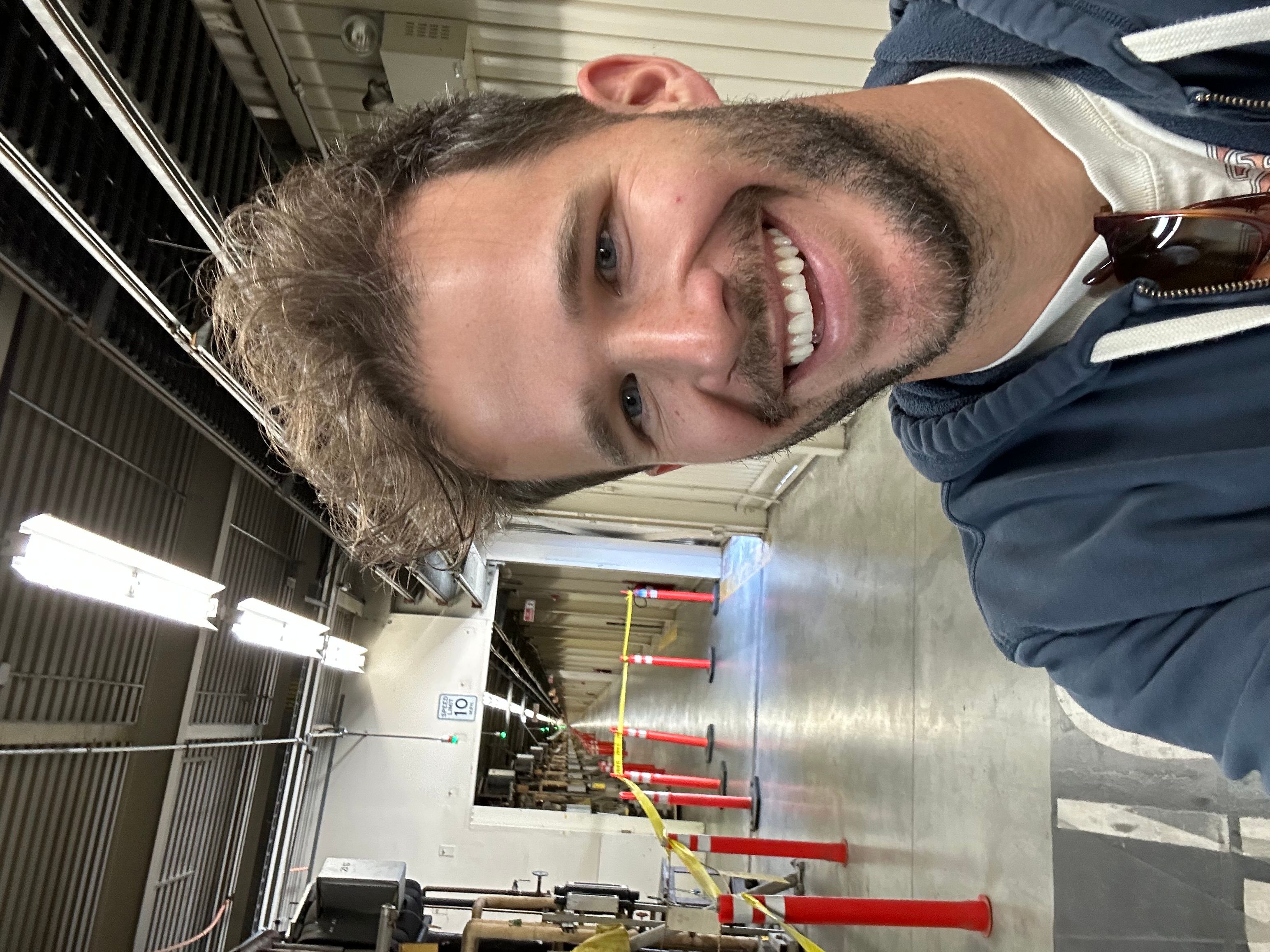
If you think you can see the end of this hallway, you're a liar! The human eye can't do it. Our guide told us so, and he was a scientist, okay? Okay!
For the so-tempted, SLAC offers a free tour, once per month, and I'm pretty sure it sells out faster than Phish tickets or Yosemite camping sites (bookmark this page if you want in!).
I've been daydreaming about visiting SLAC ever since I wrote a scene in my manuscript about someone accidentally discovering a particle accelerator beneath their parent's office -- and then subsequently realizing that I have no idea what a particle accelerator actually looks like.
Also, particle accelerators are just cool. You may be aware that the World Wide Web was created in one in 1989 - not directly influenced by hyper-charged electrons, of course, but also not-not-directly influenced either. Plus, this one -- SLAC -- also played host to some meetings of the Homebrew Computer Club during the 1970s.
I was therefore, understandably, quite excited when I successfully conjured tickets for the April tour, and then entered a building on Sand Hill Road for the first time.
SLAC tour walkthrough
The SLAC tour begins, excitingly, in a conference room where you watch a pre-recorded video, which despite a valient effort, is nowhere near as good as its Jurassic Park "frog DNA" counterpart. The SLAC video covers the Cold War era SLAC origin tale in the early 1960s, the fascinating Nobel-prize-inducing discoveries discovered here (including the charm quark and the tau lepton particle), the unplanned-obsolence of the primary linear accelerator, and its recent renewal for other cool x-ray stuff.
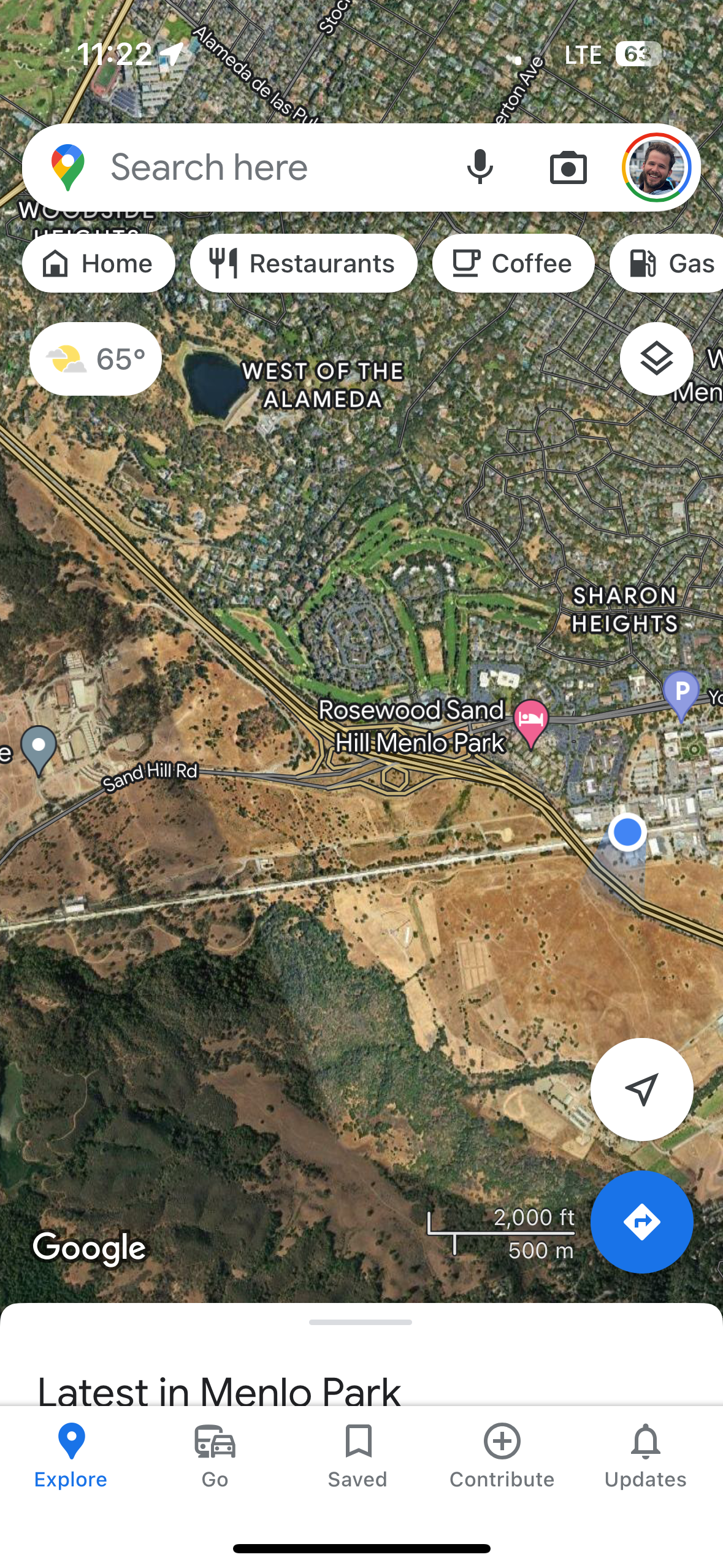
Approximately twelve minutes later, we hop in a bus and head on over to the linear accelerator, which from the surface, looks like a bunch of shipping-container style buildings in a row. A very long row. Here's Google Maps proof:
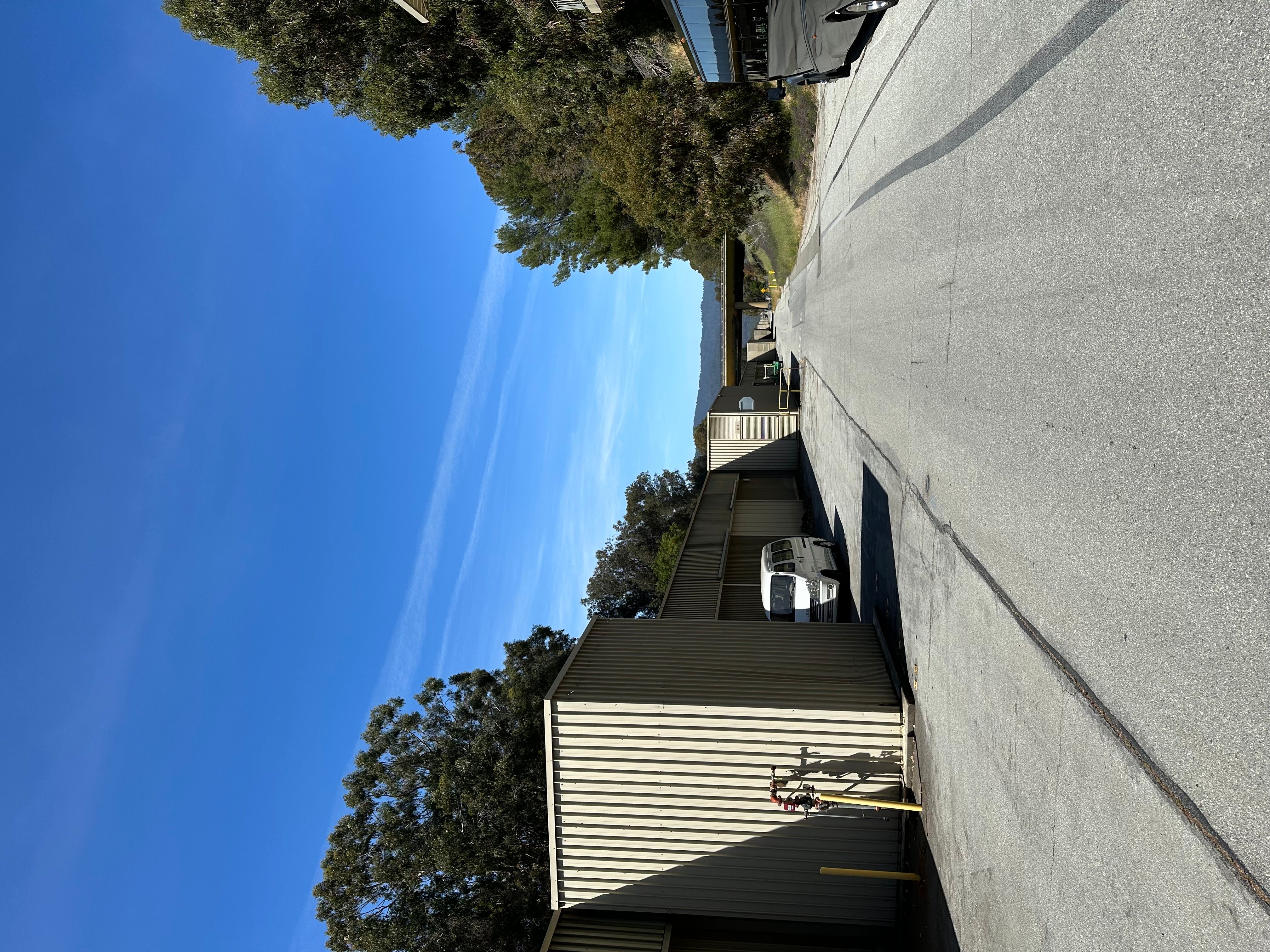
Inside this record-setting building (once the longest building the world), you'll first see a sample section of the accelerator itself (the rest of which is buried many feet below you).
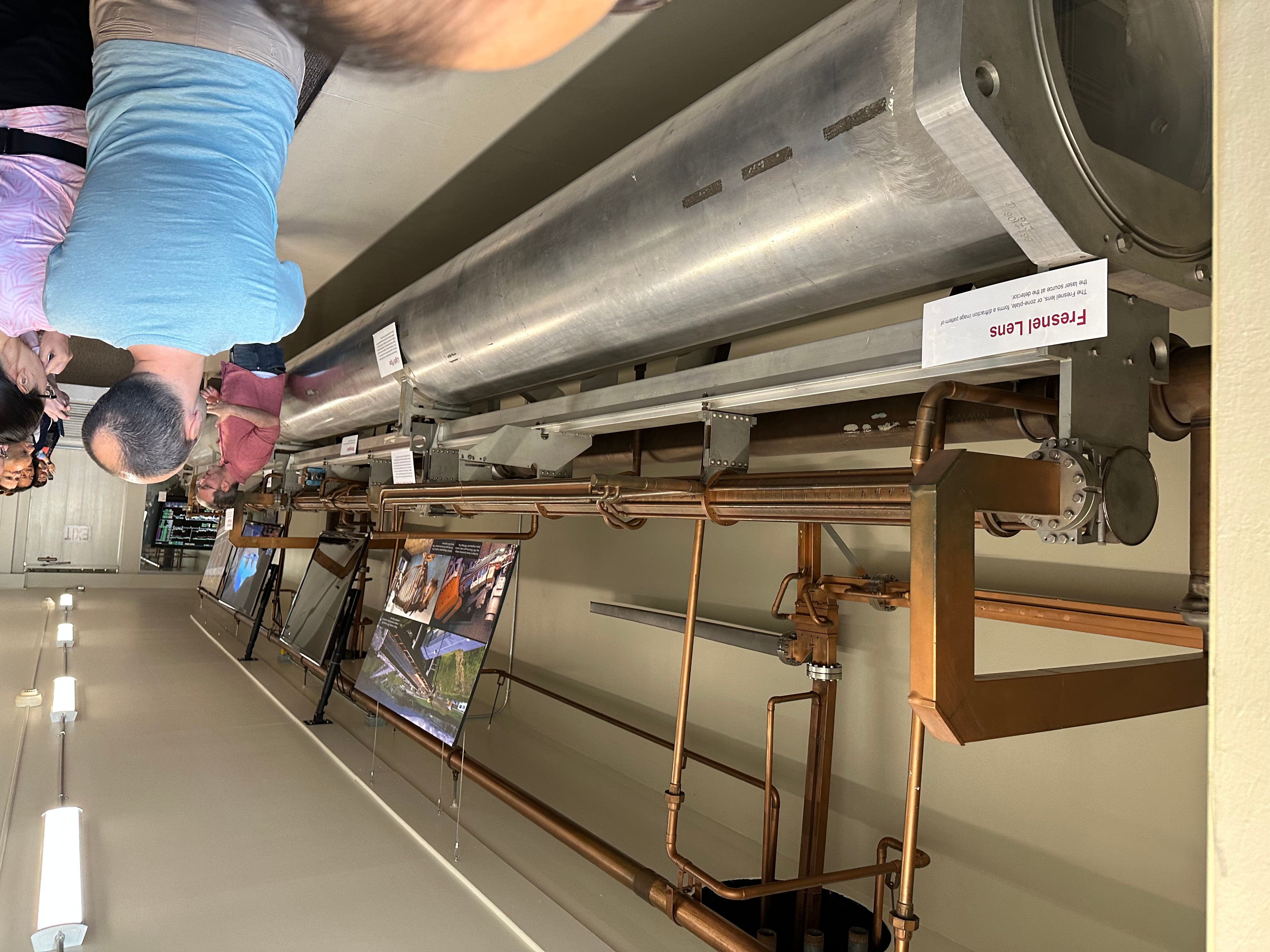
The bigger silver pipe is called the Light Pipe and it helps align the smaller copper pipe above it where the particles travel. Because the accelerator is two miles long, they had to factor in the curvature of the Earth its contruction and its ongoing alignment. Though the advent of the laser pointer pen (you know, the thing your cool, but also kinda mean, middle school classmate secretly pointed at the guest speaker during an assembly about drugs or something) rendered the light pipe obsolete, the light pipe served its purpose effectively, helping align what was once the world's "most straight object."
After checking out this sample section of the accelerator, we're allowed to enter the "Klystron gallery".
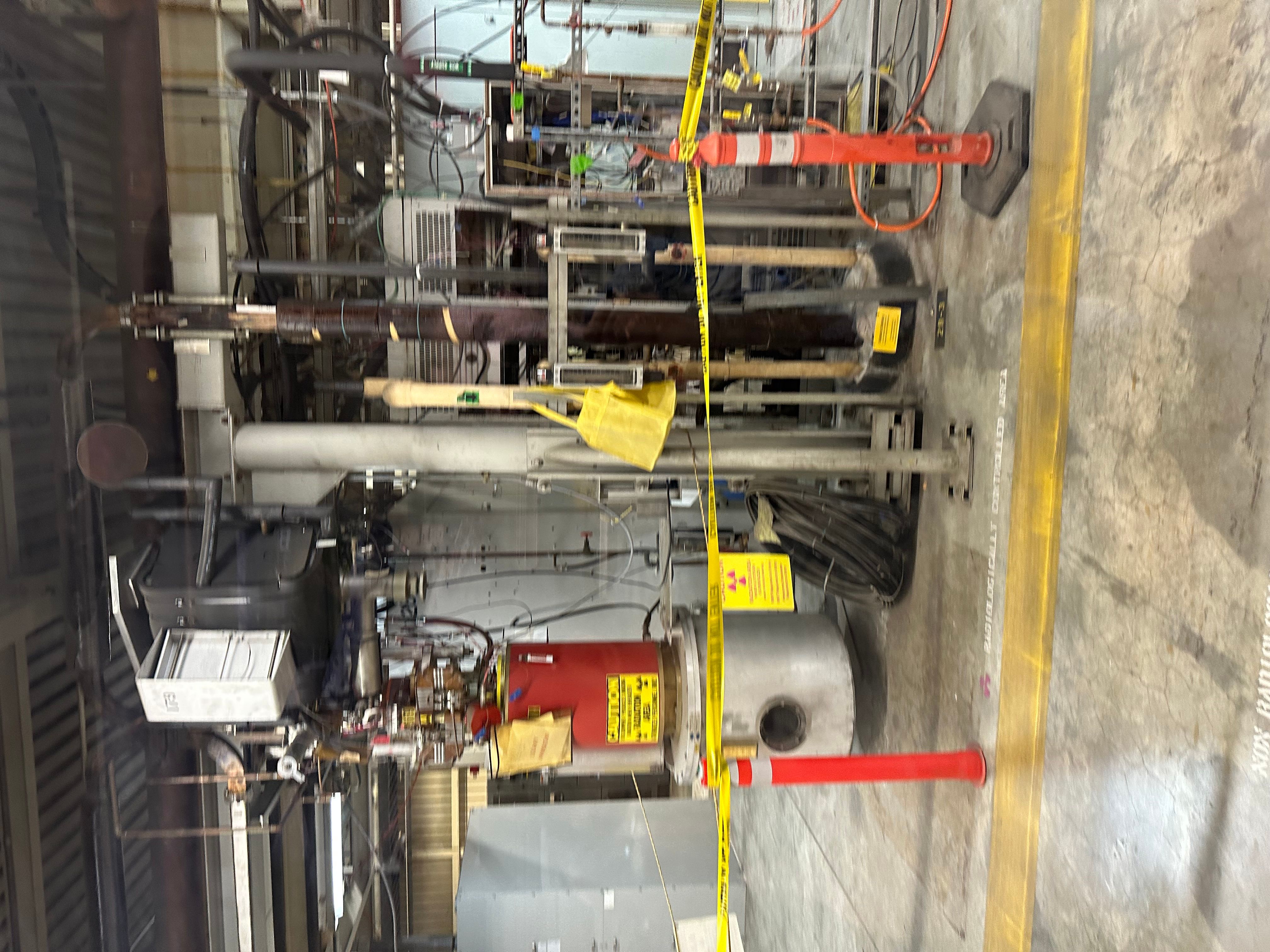
A Klystron is this big microwave thing that helps speed up the particles traveling along the accelerator. This is the best visual of what's going on where with these here klystrons.
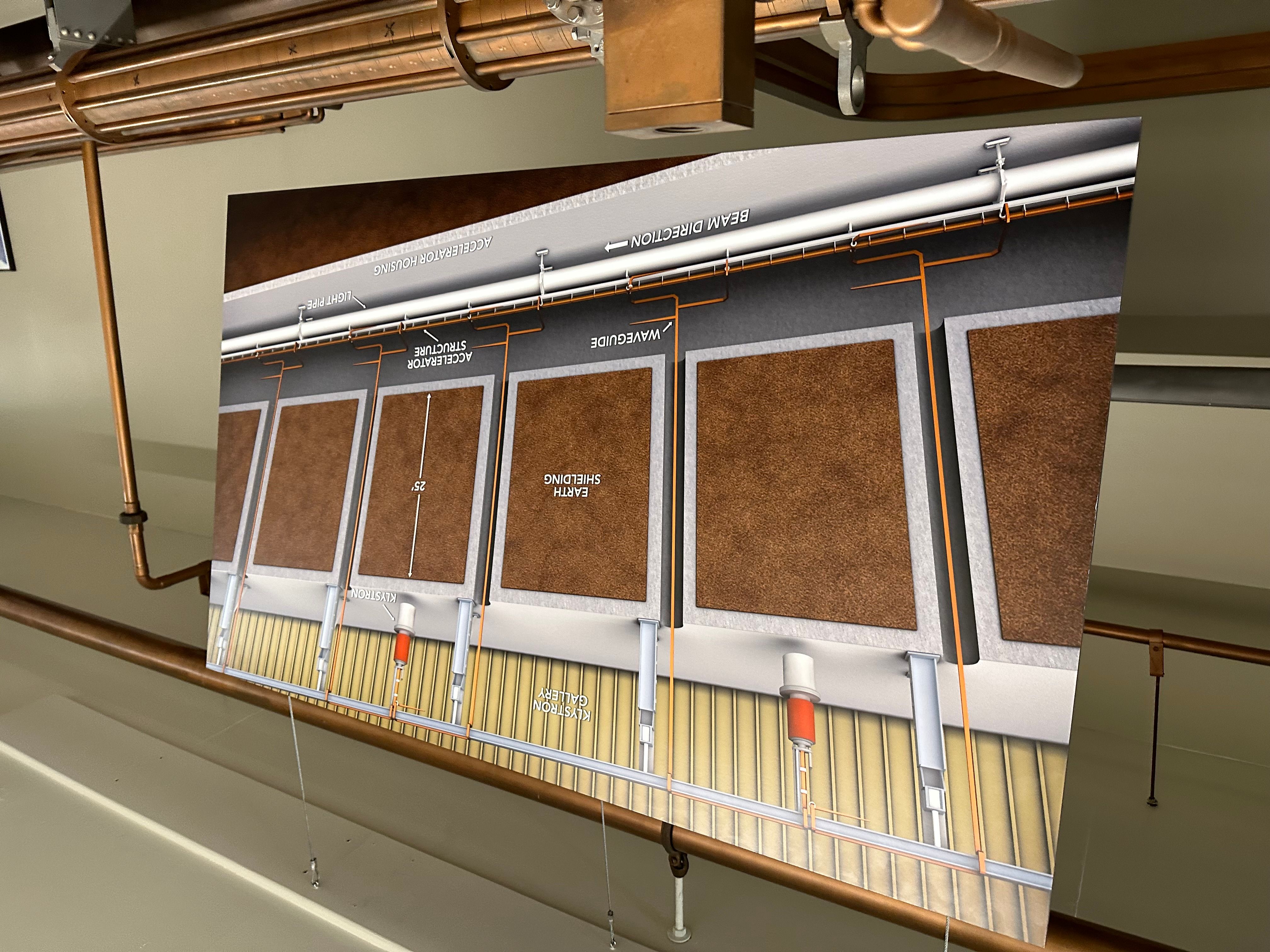
The "gallery", where we are, is the top section. Below us, beneath many feet of "Earth shielding" which appears to be dirt based on this diagram, is the accelerator. Every X feet (I forget how many), a kytstron will send microwave-like energy down to the accelerator, and help ... accelerate ... the particles flinging along the path (electrons and positrons). The inside of the copper accelerator pipe looks like this, where the microwaves from the Klystron enter these open sections.
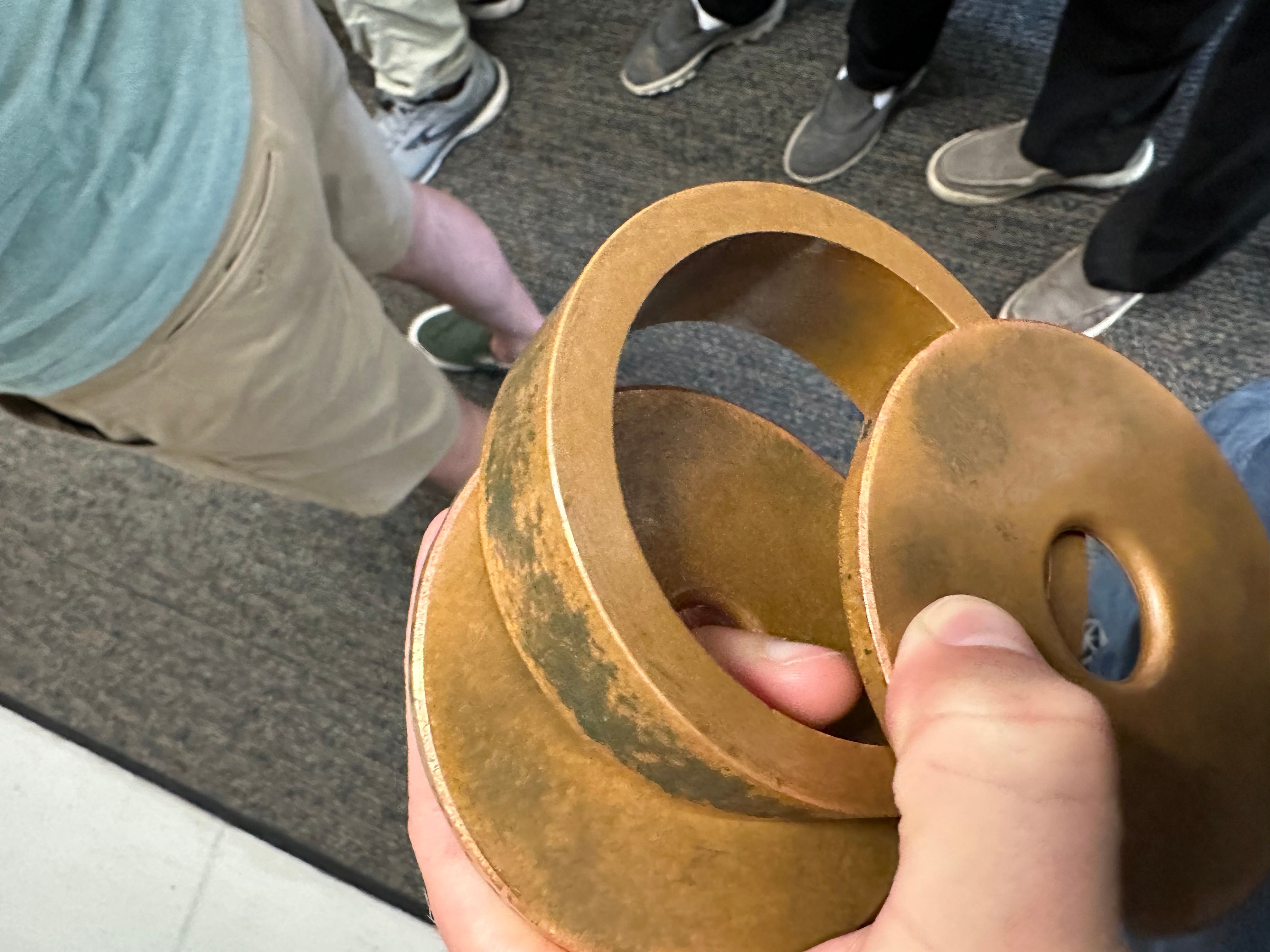
The pipe with the particles is also water-cooled, cause it gets real hot.
What else? Well, here's the caution sign right as you enter the Klystron gallery.
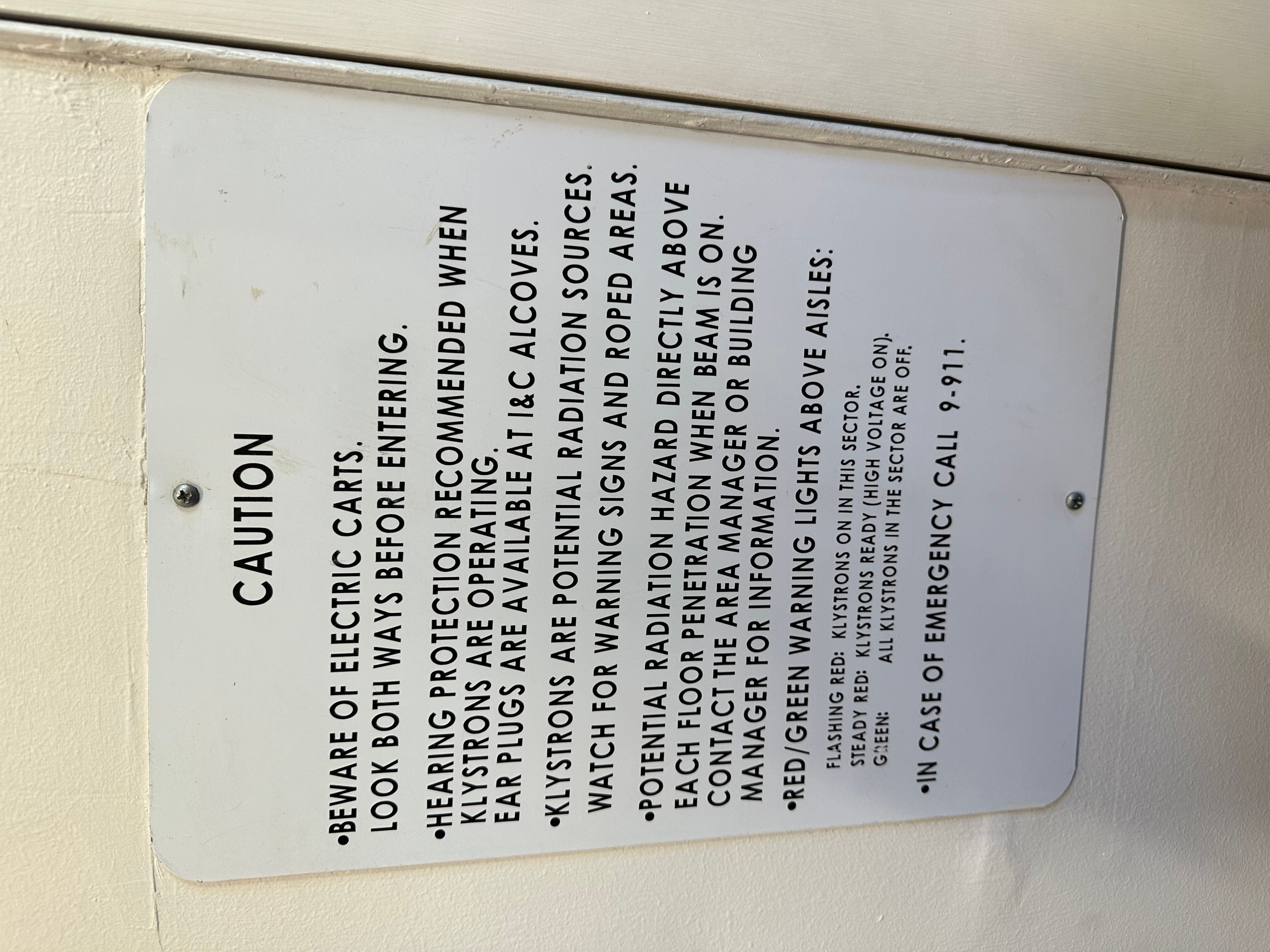
Is there radiation risk in here, you might ask? No more so than when you eat a banana, says our guide. However, we are still greeted with these warnings:
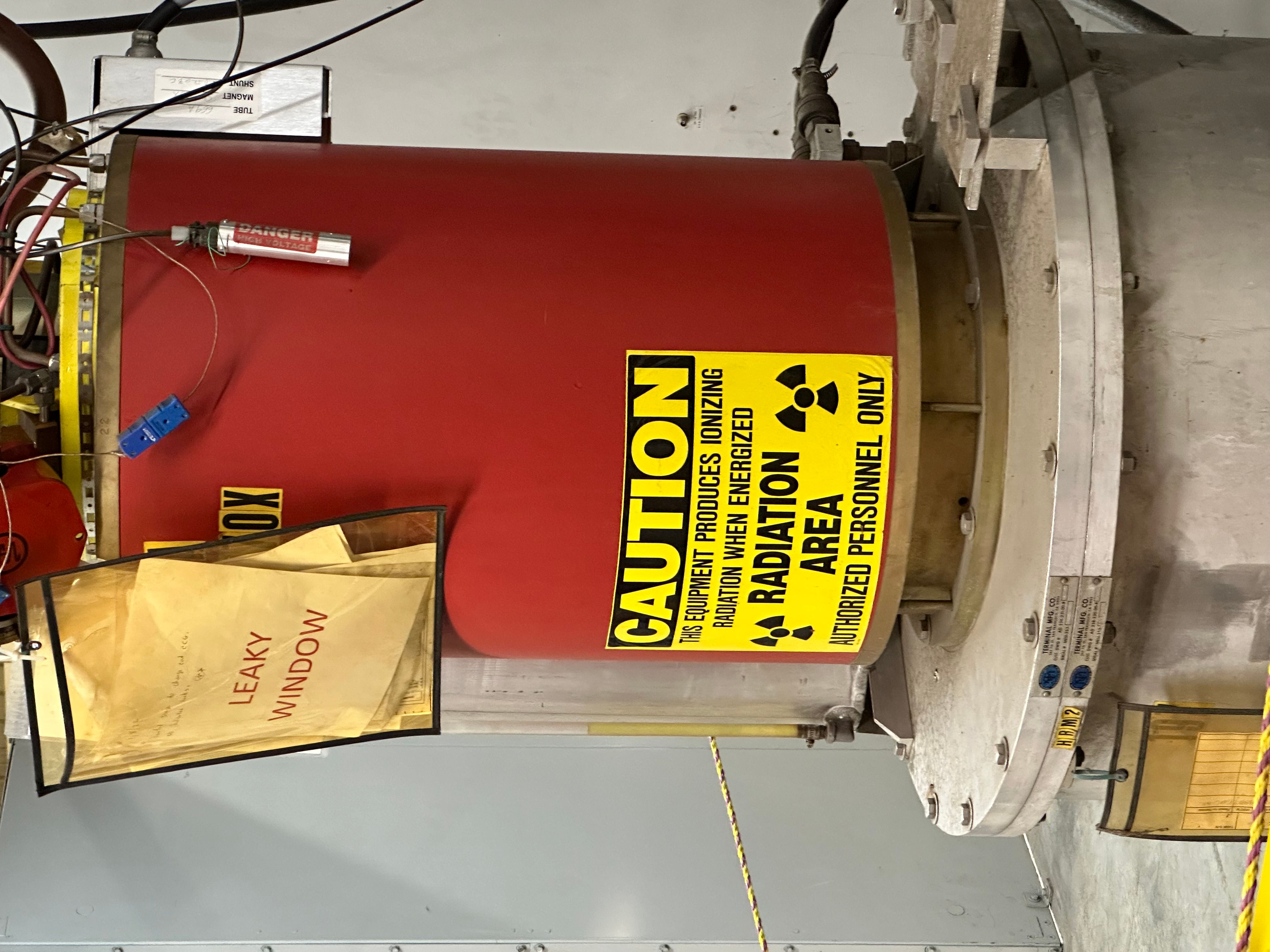
Not sure about that leaky window thing.
Here's the view of the gallery looking left:
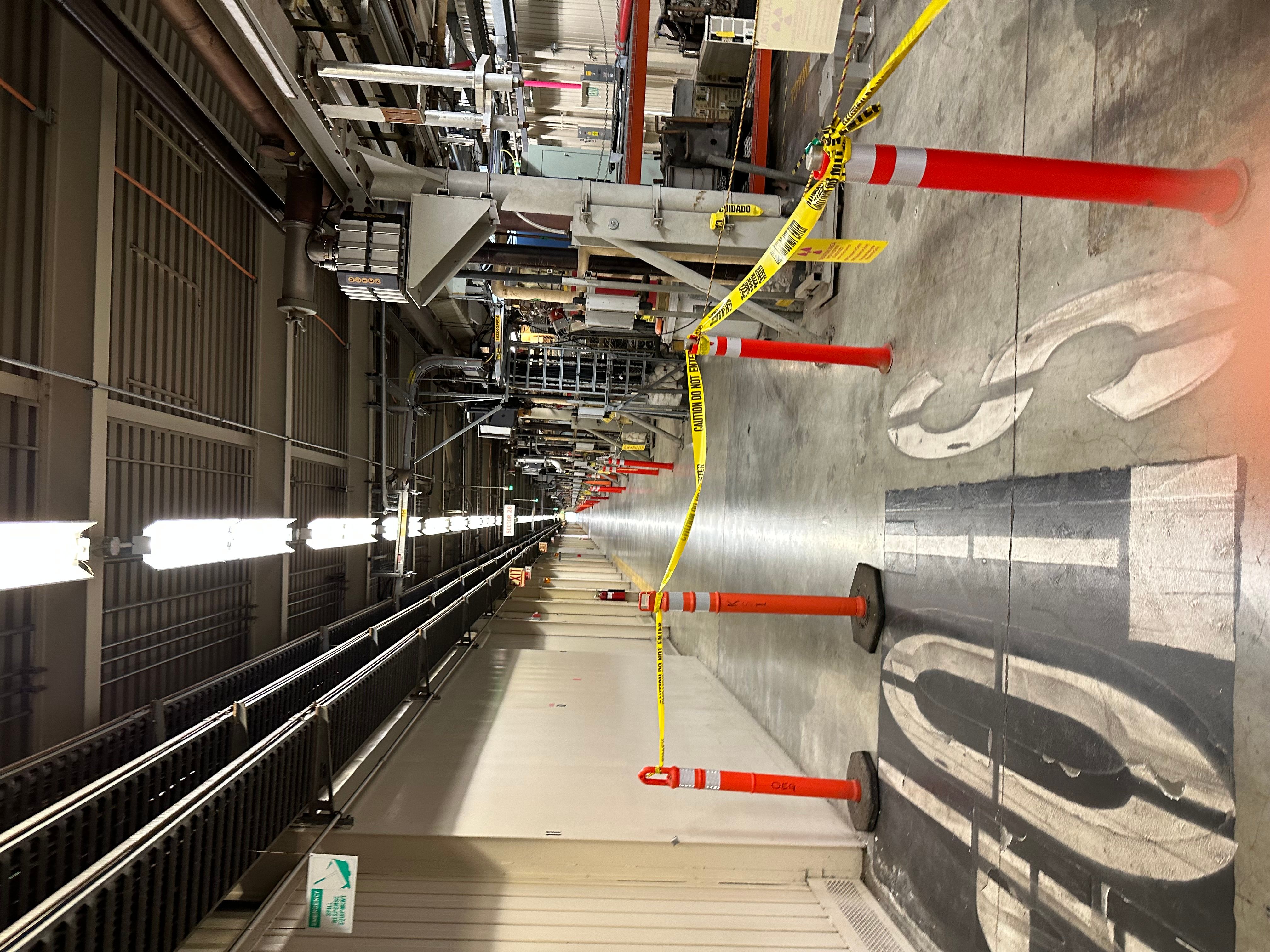
And now looking right:
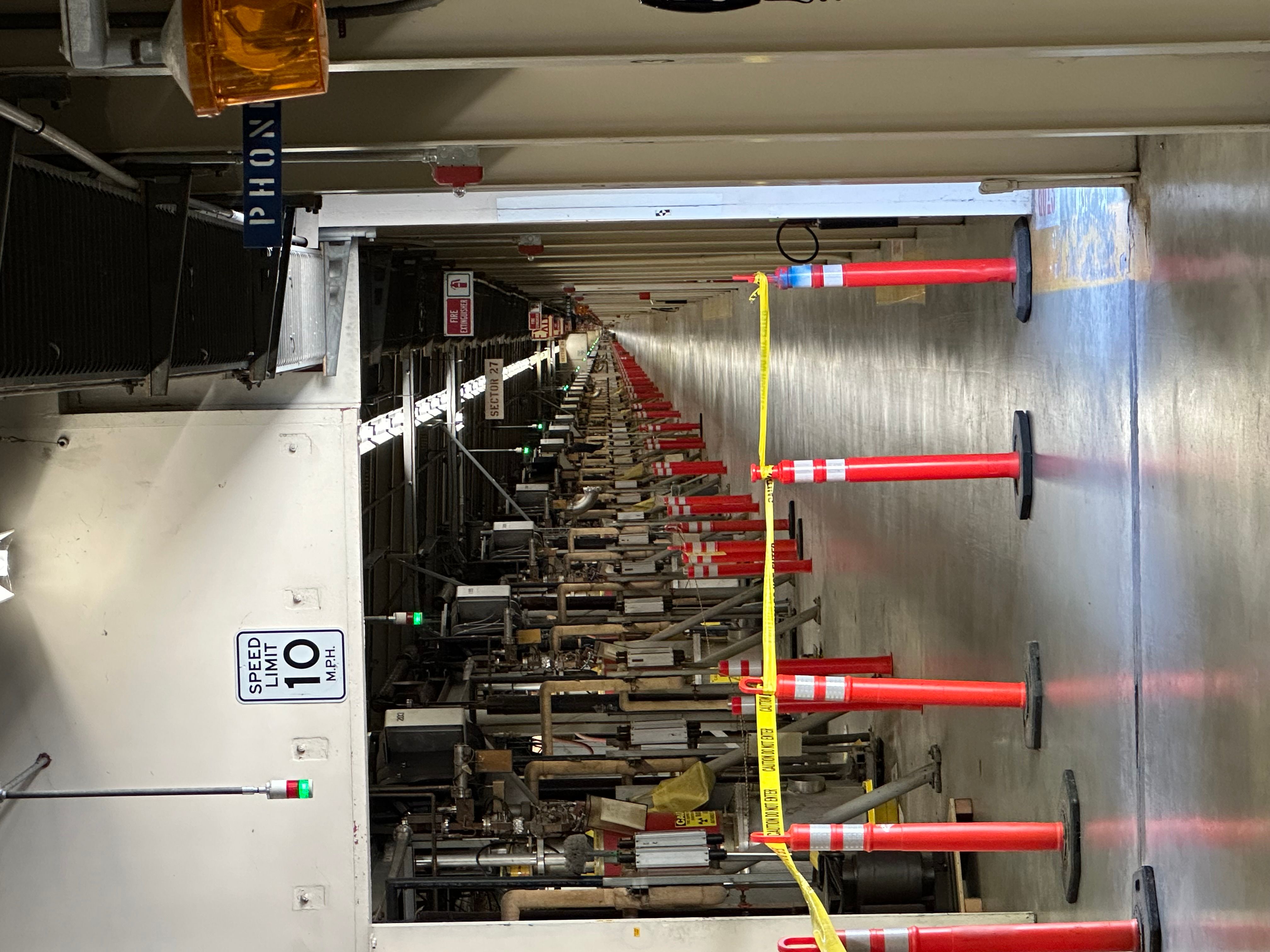
It really is trippy to look down this hallway. I asked our host if he'd ever run the full length. He chuckled (not sure if that was an affirmative), but did say that there used to be a 5k among the scientists, up and back along the accelerator. I'd love to have seen - or better run -- that race.
Science stuff
Eventually ,the SLAC linear accelerator lost steam, so to speak. You may be loosely aware that the top accelerators these days are all curved (e.g. CERN). Our host explained that electrons lose energy during a curve, so why did the curved accelerators win out? Mainly, money. Because each klystron in a linear accelerator can only be used "once" for a given particle -- the only way to speed things up even more would be to make the linear accelerator longer, and that's just impractical money-wise and land-wise. But a curved accelerator, even with energy-loss along the way, can reuse its klystrons (and the like) many, many, many times. Even SLAC ended up building some curved sections at the end of the accelerator.
All that to say that the linear accelerator is no longer used in the same way anymore. But scientists have built a bunch of other interesting things using components of the accelerator, like the Linac Coherent Light Source - a giant x-ray laser.
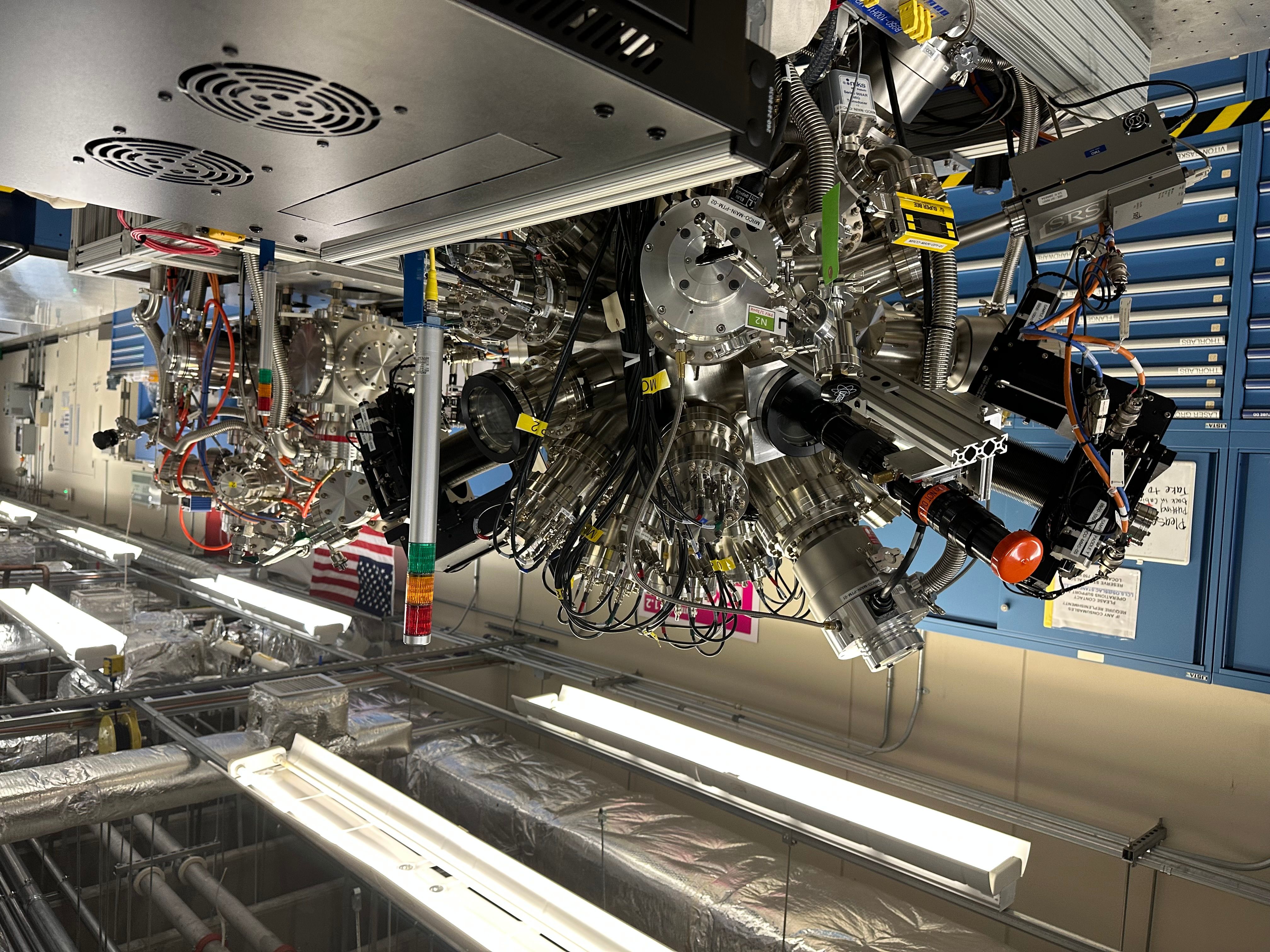
And for the next part of the tour, we got to see where these scientists are doing their science. And guess what? This part was even cooler than the endless hallway, because it felt active and alive and also like a space station.
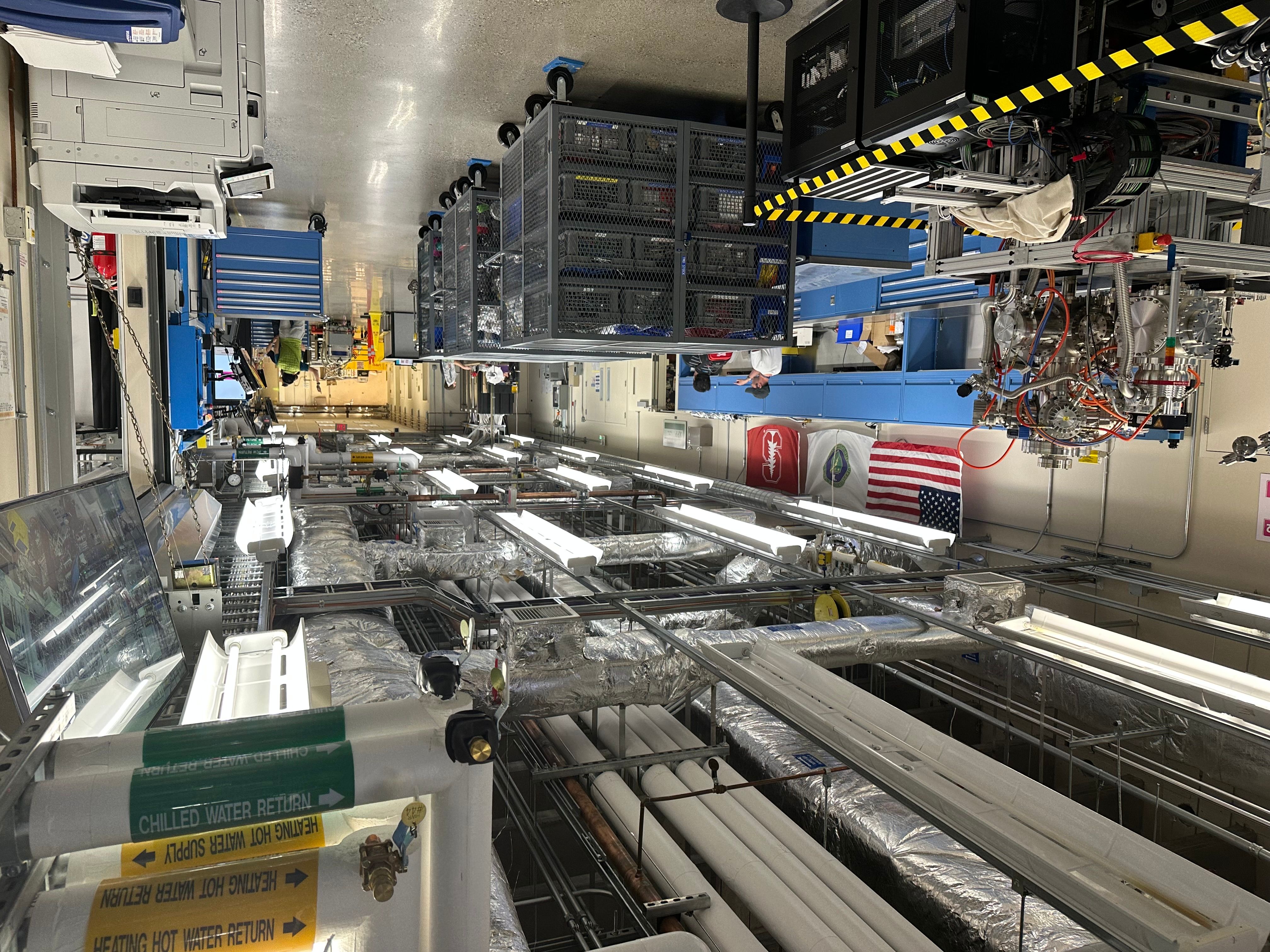
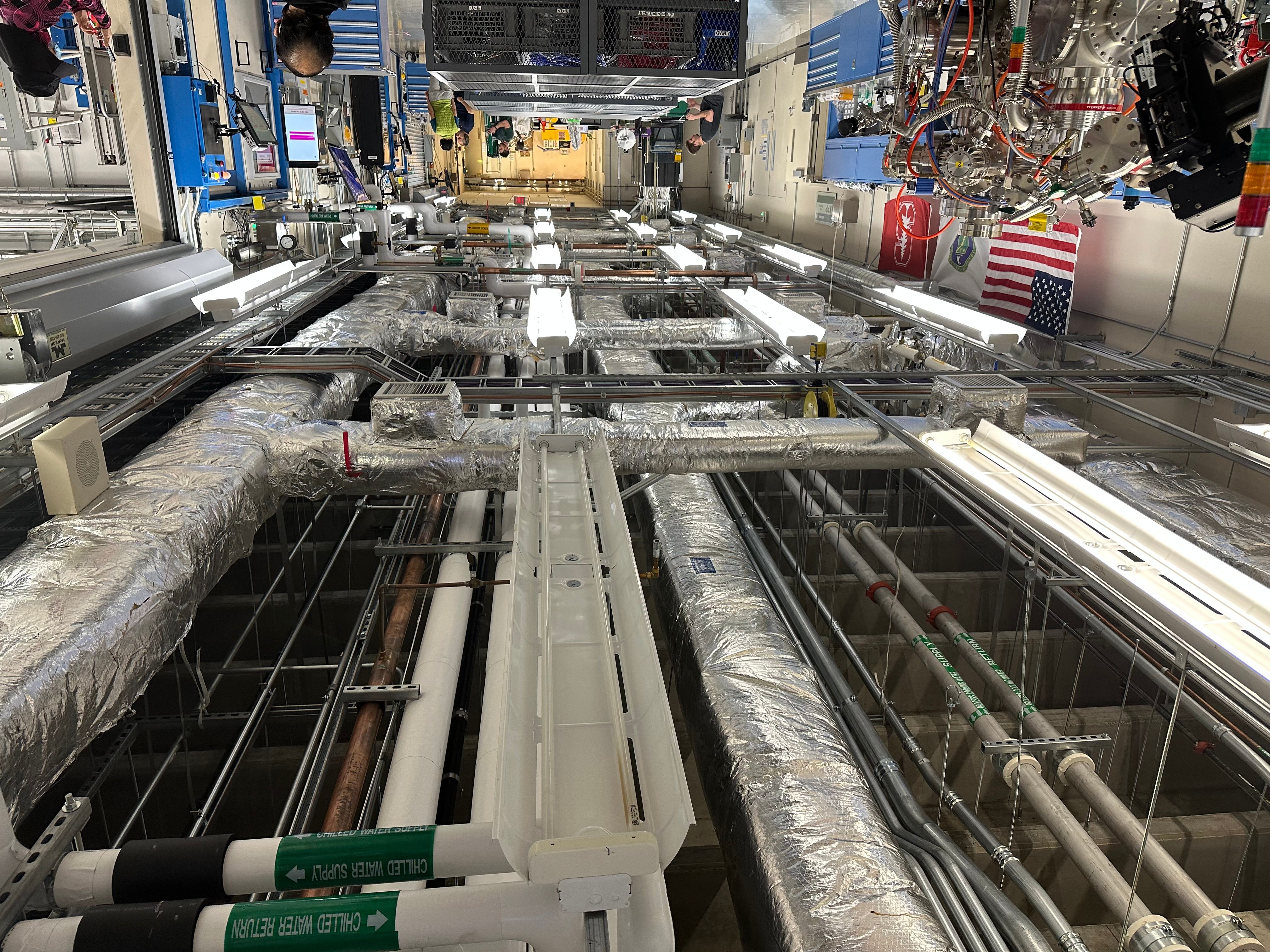
Like, what the heck is this thing?
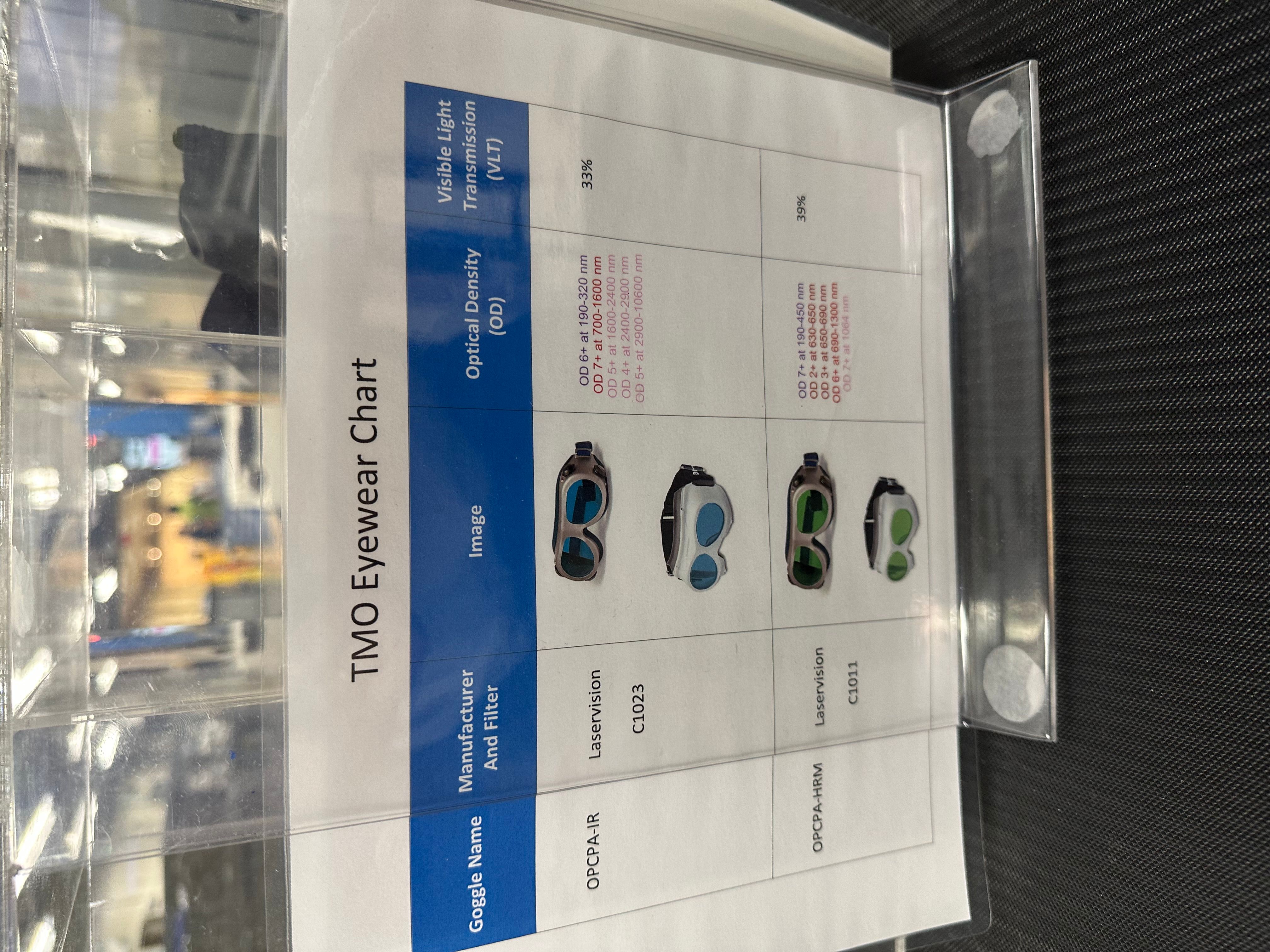
Better wear the correct goggles, or else!
I know this says "hutch" but I read it as "hatch," and imagined Desmond from Lost stuck down here.
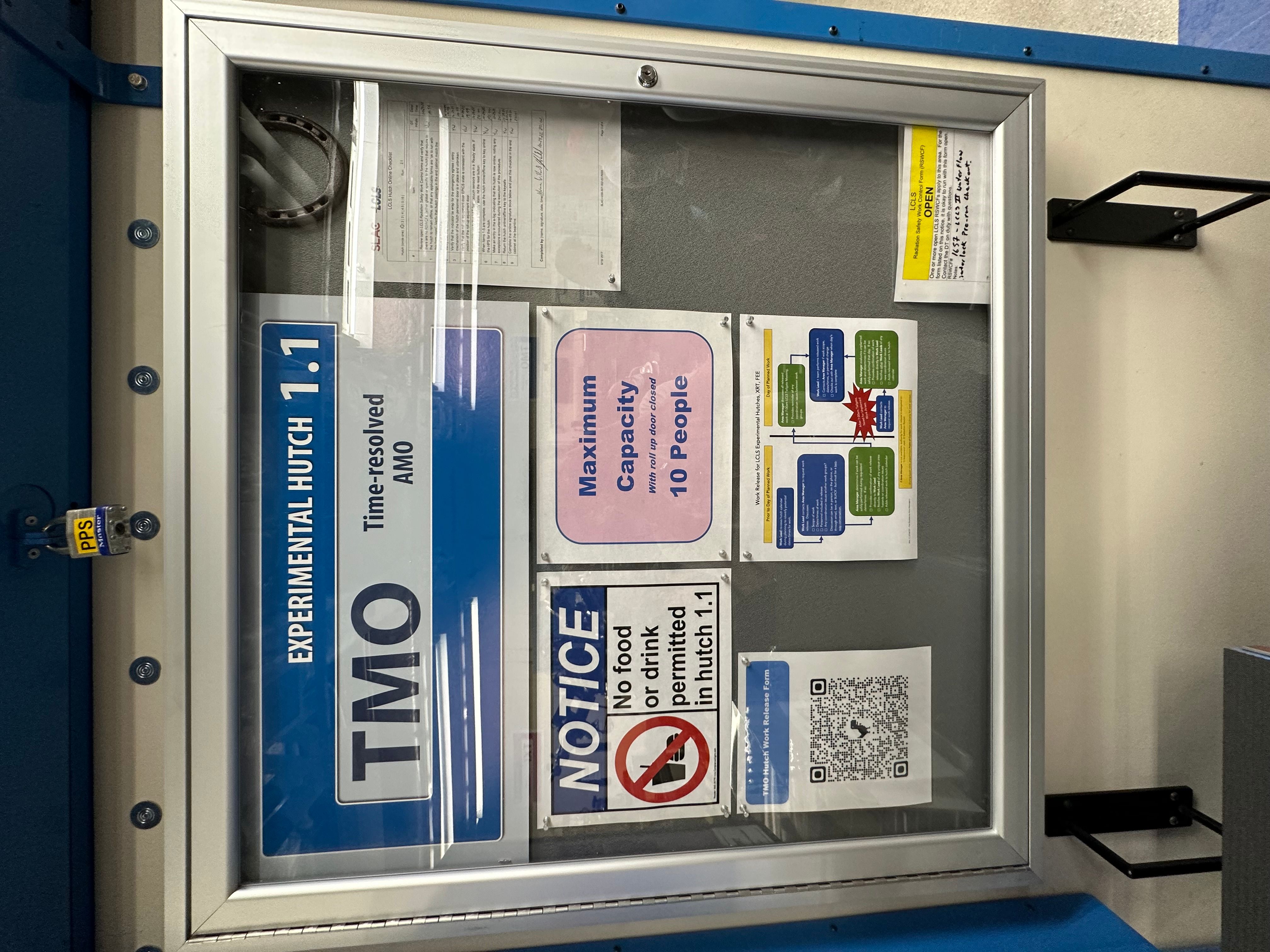
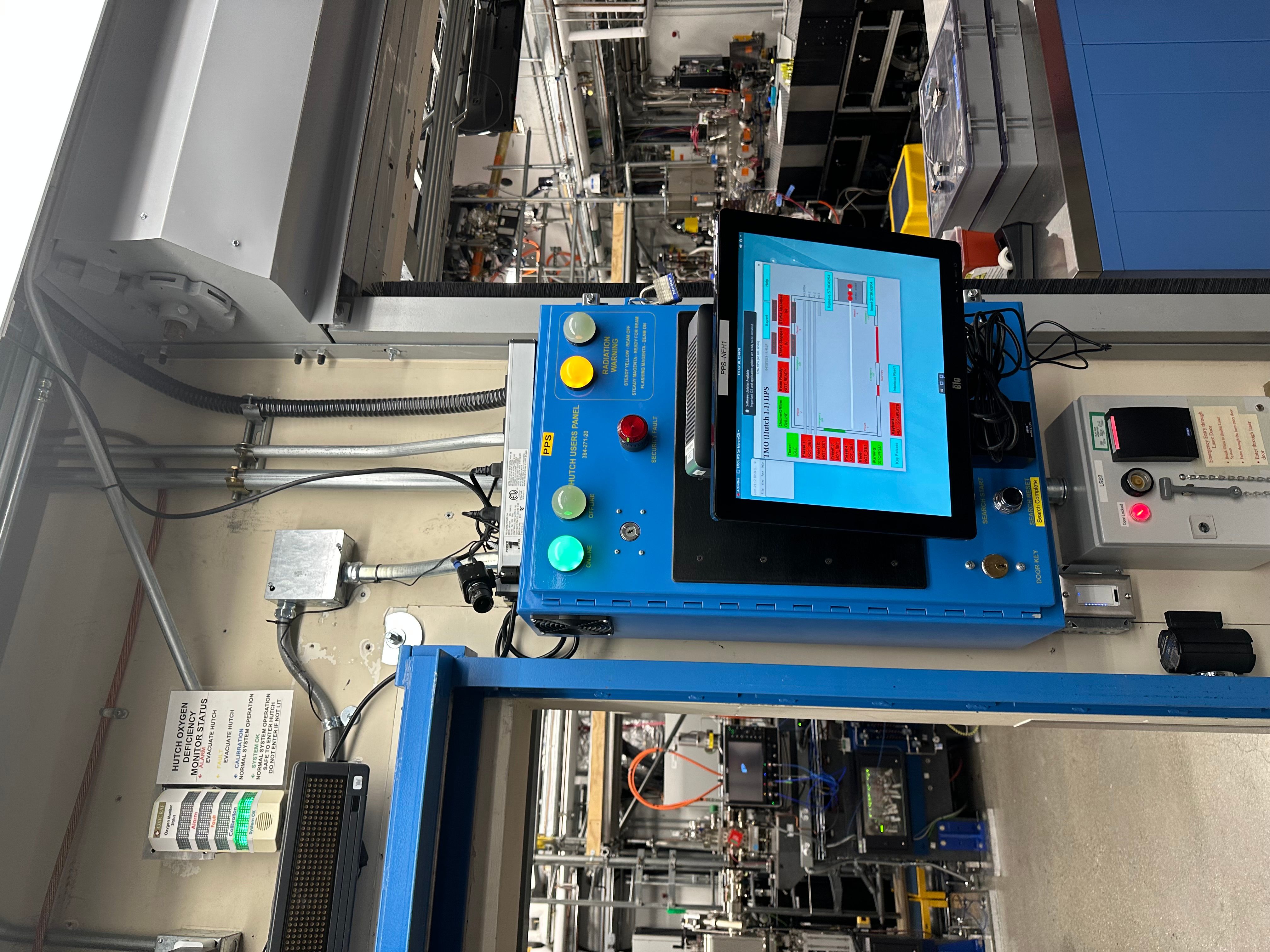
Inside the hutch, where they are using the x-ray laser to "record videos of photosynthesis happening." Awesome.
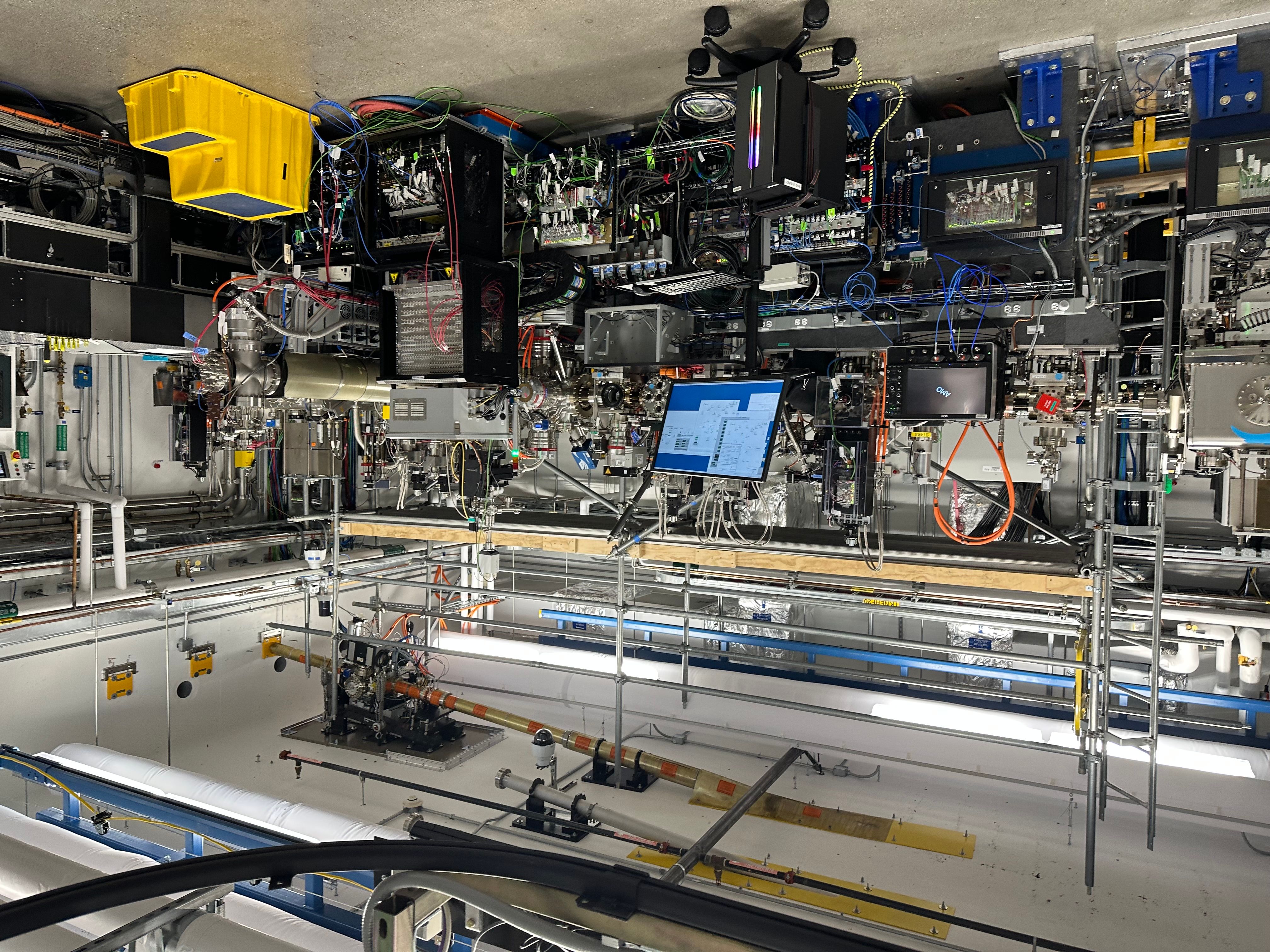
This is what I wish the inside of my garage looked like.
Here's more of the wild and weird machines just sitting in the hallway:
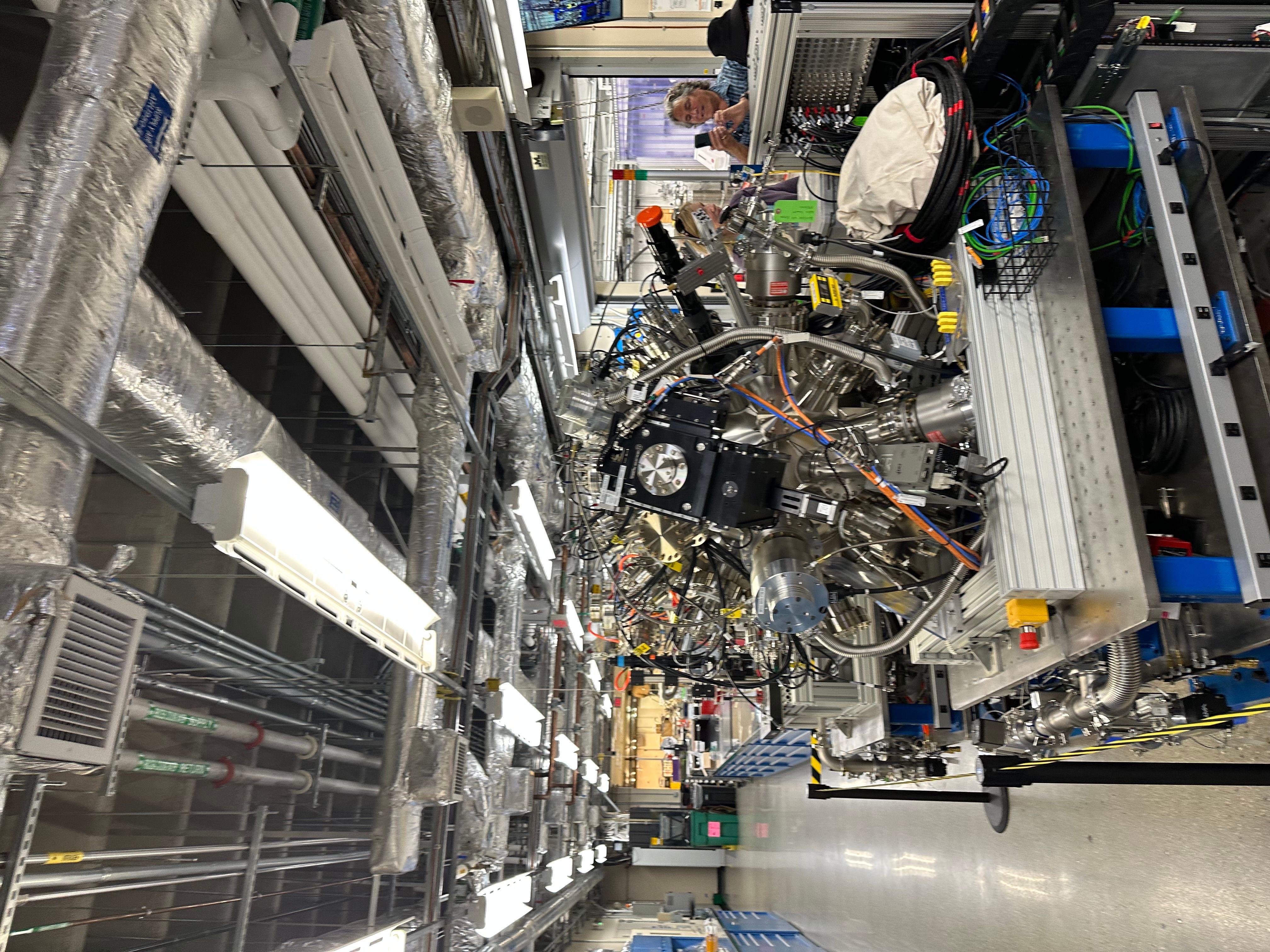
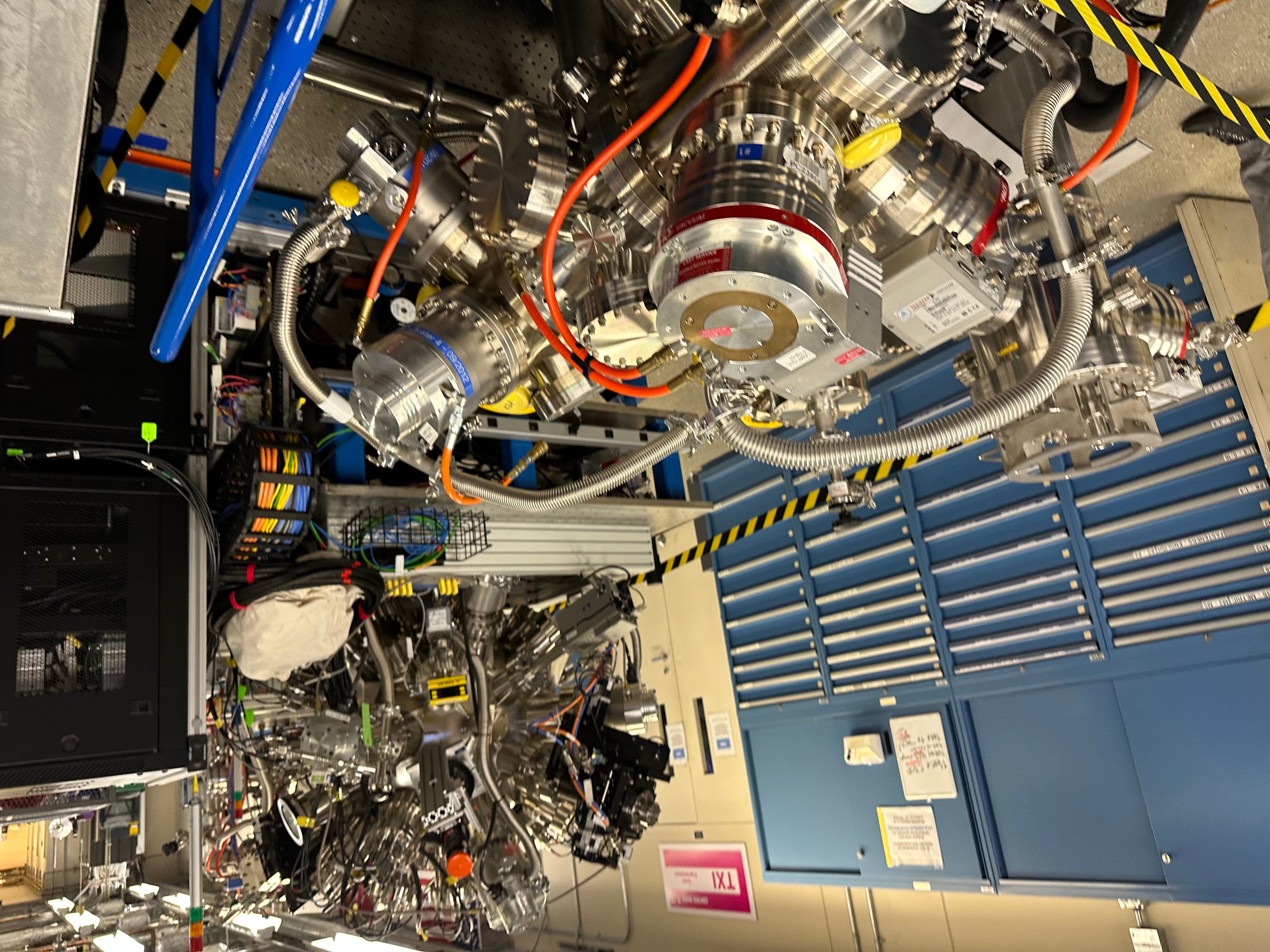
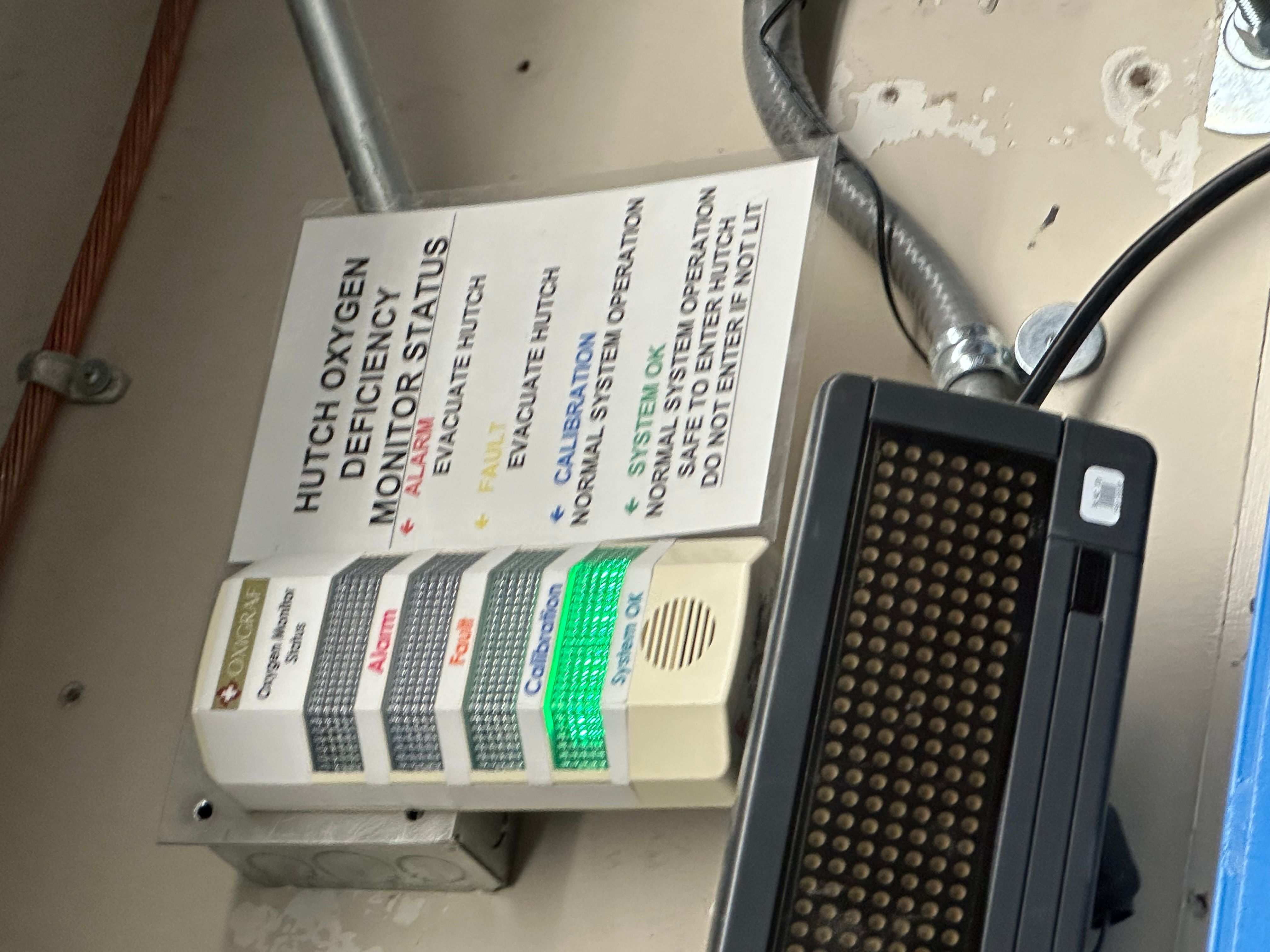
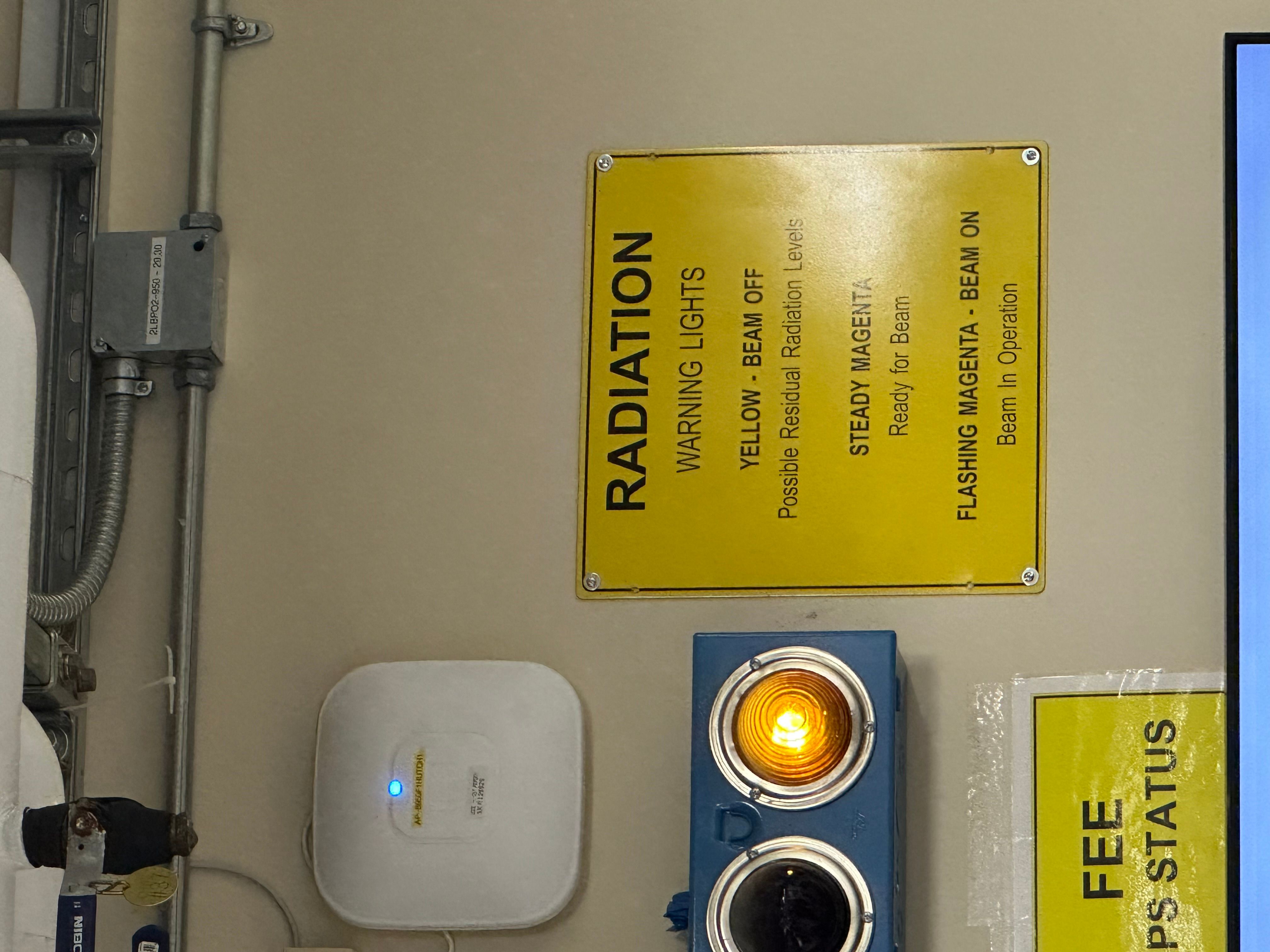
Some warning signs:
A whiteboard where they are presumably working on LeetCode problems while waiting for their turn with the laser.
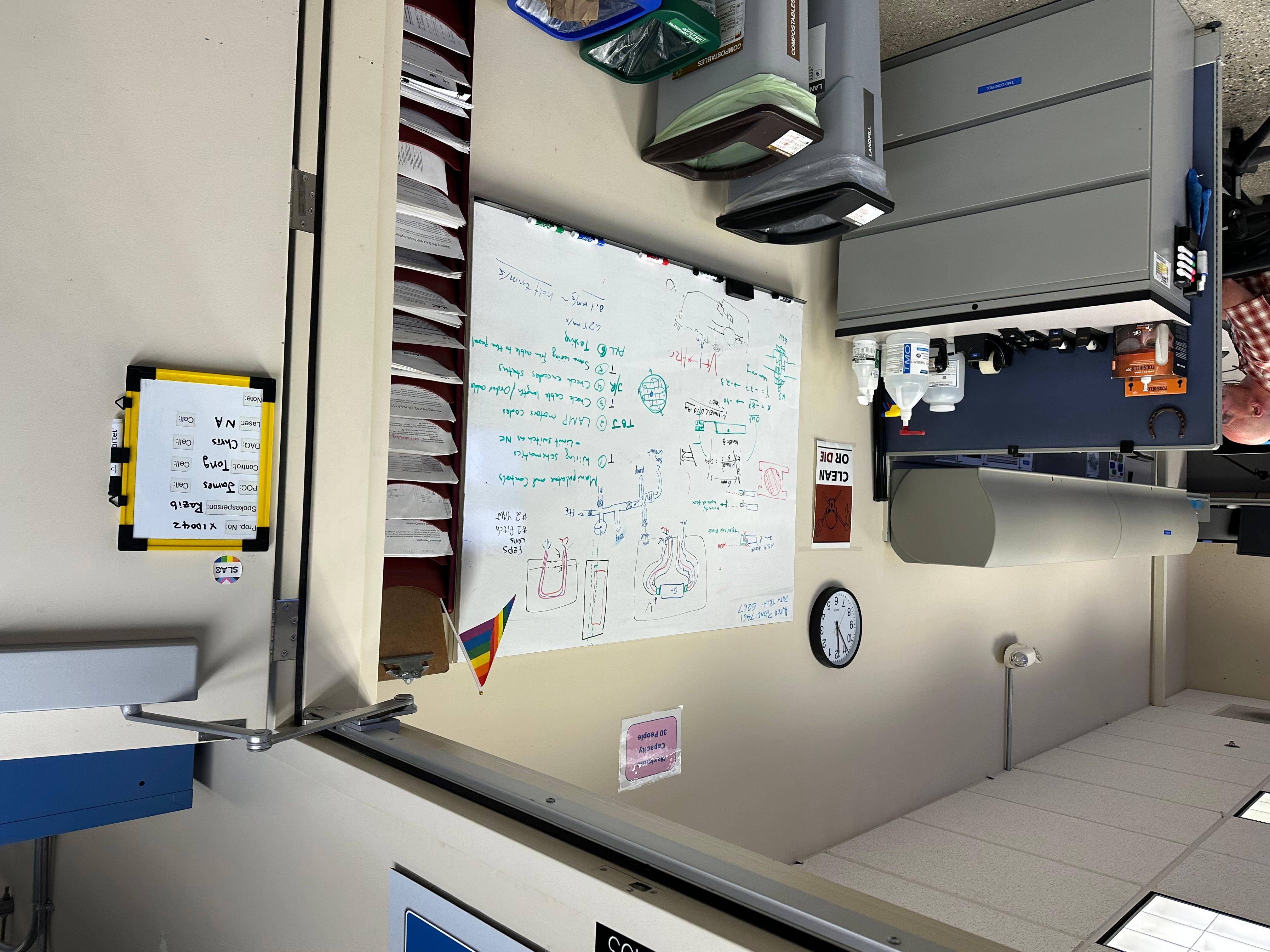
Another fun facts
And that's it! The tour must end, science must continue. We're delivered back to the original building via bus, and as a final thank-you, we're allowed to make a commemorative flattened penny, which I would have loved to do, but the line was too long.
A few final SLAC notes:
While they were digging up the ground to build the accelerator, they found an intact Paleoparadoxia skeleton - which was an ancient manatee looking thing, and they've kept the big ol' fossil on-site.
Finally, though I did not learn this on the tour, this factoid is too important not to directly rip from Wikipedia:
The SSRL facility was used to reveal hidden text in the Archimedes Palimpsest. X-rays from the synchrotron radiation lightsource caused the iron in the original ink to glow, allowing the researchers to photograph the original document that a Christian monk had scrubbed off.
Palimpsest! My favorite word! Just when you think a place couldn't get any cooler it goes and reveals hidden text on ancient manuscripts.
Syncing my emulator saves with Syncthing


Or: cloud saves at home

One of the most common upsells in gaming is "cloud saves", or some encrypted storage space with your console/platform manufacturer to store the save files that games make. Normally Steam, PlayStation, Xbox, Nintendo, and probably EA offer this as a service to customers because it makes for a much better customer experience as the customer migrates between machines. Recently I started playing Dead Space 2 on Steam again on a lark and I got to open my old Dead Space 2 save from college. It's magic when it works.
However, you should know this blog well enough that we're going way outside the normal/expected use cases in this case. Today I'm gonna show you how to make cloud saves for emulated Switch games at home using Syncthing and EmuDeck.
For this example I'm going to focus on the following games:
- The Legend of Zelda: Breath of the Wild
- The Legend of Zelda: Tears of the Kingdom
I own these two games on cartridge and I have dumped my copy of them from cartridge using a hackable Switch.



Here's the other things you will need:
- Tailscale installed on the Steam Deck (technically optional, but it means you don't need to use a browser on the Deck)
- A Windows PC running SyncTrayzor or a Linux server running Syncthing (Tailscale will also help in the latter case for reasons that will become obvious)
- A hackable switch and legal copies of the games you wish to emulate

First, set up Syncthing on your PC by either installing SyncTrayzor or
enabling it in NixOS with this family of settings:
services.syncthing.*.
At a high level though, here's how to find the right folder with Yuzu emulator saves:
- Open Yuzu
- Right-click on the game
- Choose Open Save Data Location
- Go up two levels
This folder will contain a bunch of sub-folders with title identifiers. That is where the game-specific save data is located. On my Deck this is the following:
/home/deck/Emulation/saves/yuzu/saves/0000000000000000/
Your random UUID will be different than mine will be. We will handle this in a later step. Write this path down or copy it to your scratchpad.
Installing Syncthing on the Deck
Next, you will need to install Syncthing on your Deck. There are several ways to do this, but I think the most direct way will be to install it in your user folder as a systemd user service.
SSH into your Deck and download the most recent release of Syncthing.
wget https://domain.tld/path/syncthing-linux-amd64-<version>.tar.gz
Extract it with tar xf:
tar xf syncthing-linux-amd64-<version>.tar.gz
Then enter the folder:
cd syncthing-linux-amd64-<version>
Make a folder in ~ called bin, this is where Syncthing will live:
mkdir -p ~/bin
Move the Syncthing binary to ~/bin:
mv syncthing ~/bin/
Then create a Syncthing user service at
~/.config/systemd/user/syncthing.service:
[Unit]
Description=Syncthing - Open Source Continuous File Synchronization
Documentation=man:syncthing(1)
StartLimitIntervalSec=60
StartLimitBurst=4

[Service]
ExecStart=/home/deck/bin/syncthing serve --no-browser --no-restart --logflags=0
Restart=on-failure
RestartSec=1
SuccessExitStatus=3 4
RestartForceExitStatus=3 4

# Hardening
SystemCallArchitectures=native
MemoryDenyWriteExecute=true
NoNewPrivileges=true

# Elevated permissions to sync ownership (disabled by default),
# see https://docs.syncthing.net/advanced/folder-sync-ownership
#AmbientCapabilities=CAP_CHOWN CAP_FOWNER

[Install]
WantedBy=default.target
And then start it once to make the configuration file:
systemctl --user start syncthing.service
sleep 2
systemctl --user stop syncthing.service

Now we need to set up Tailscale Serve to point to Syncthing and let Syncthing allow the Tailscale DNS name. Open the syncthing configuration file with vim, your favorite text editor:
vim ~/.config/syncthing/config.xml
In the <gui> element, add the following configuration:
<insecureSkipHostcheck>true</insecureSkipHostcheck>
Next, configure Tailscale Serve with this command:
sudo tailscale serve https / http://127.0.0.1:8384
This will make every request to https://yourdeck.tailnet.ts.net go
directly to Syncthing.
Next, enable the Syncthing unit to automatically start on boot:
systemctl --user enable syncthing --now
Syncing the things
Once Syncthing is running on both machines, open Syncthing's UI on your PC. You should have both devices open in the same screen for the best effect (this is where Tailscale Serve helps).
You will need to pair the devices together. If Syncthing is running on both machines, then choose "Add remote device" and select the device that matches the identification on the other machine. You will need to do this for both sides.
Once you do that, you need to configure syncing your save folder. Make a new synced folder with the "Add Folder" button and it will open a modal dialog box.
Give it a name and choose a memorable folder ID such as "yuzu-saves". Copy the path from your scratchpad into the folder path.
Then make a new shared folder on your PC pointing to the same location (two levels up from yorur game save folder found via Yuzu). Give it the same name and ID, but change the path as needed.
Next, on your Deck's Syncthing edit that folder with the edit button and change over to the Sharing tab. Select your PC and check it. Click Save and then it will trigger a sync. This will copy all your data between both machines.
If you want, you can also set up a sync for the Yuzu nand folder.
This will automatically sync over dumped firmware and game updates. I
do this so that this is more effortless for me, but your needs may
differ. Also feel free to set up syncing for other emulators like
Dolphin.