Reading List
The most recent articles from a list of feeds I subscribe to.
Minimalist Affordances: Making the right tradeoffs
Usability and aesthetics usually go hand in hand. In fact, there is even what we call the “Aesthetic Usability Effect”: users perceive beautiful interfaces as easier to use and cut them more slack when it comes to minor usability issues.
Unfortunately, sometimes usability and aesthetics can be at odds, also known as “form over function”.
Simplicity, and knowing when to stop
A common incarnation of form-over-function, is when designers start identifying signifiers and affordances as noise to be eliminated, sacrificing a great deal of learnability for an — often marginal — improvement in aesthetics.
Aesthetic and Minimalist Design is one of the Nielsen/Norman core usability heuristics (and all other heuristics taxonomies have something similar). More poetically, Antoine de Saint-Exupéry said “Perfection is achieved, not when there is nothing more to add, but when there is nothing left to take away”. However, this is one of those cases where everyone agrees with the theory, but the devil is in the details (though user testing can do wonders for consensus).
Case in point: The new Github comment UI is beautiful. Look at how the text area smoothly blends with the tab, creating an irregular and visually interesting shape!
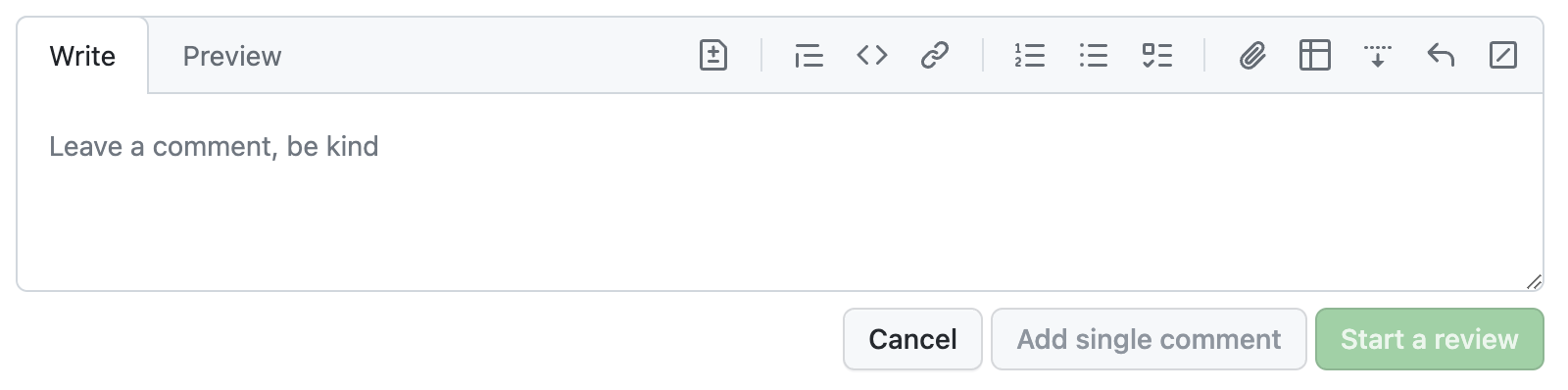
The new GitHub commenting UI, unfocused.
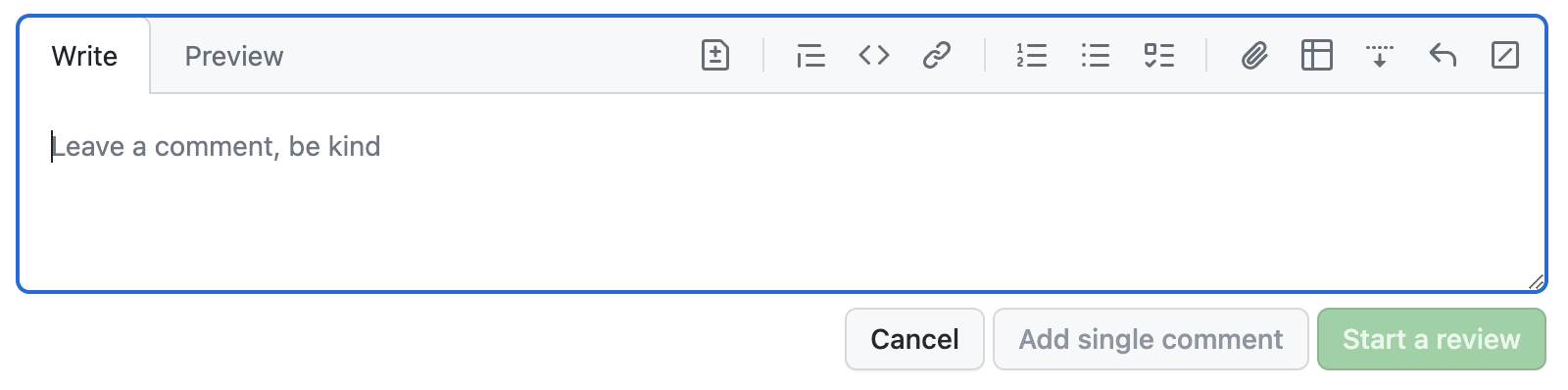
The new GitHub commenting UI, focused. Am I the only one that expected the focus outline to also follow the irregular shape?
However, I cannot for the life of me internalize that this is a text field that I can type in. Even after using it over a dozen times, I still have to do a double take every time (“Where is the comment field?!”, “Why is this read-only?”).
For comparison, this was the old UI:
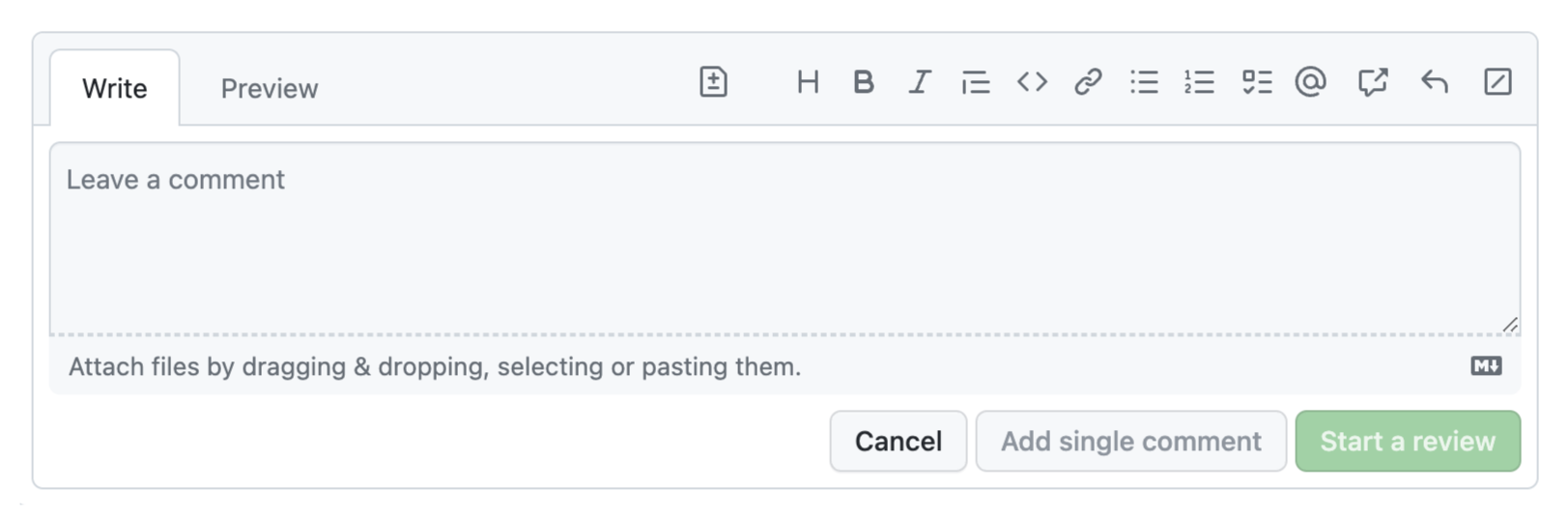
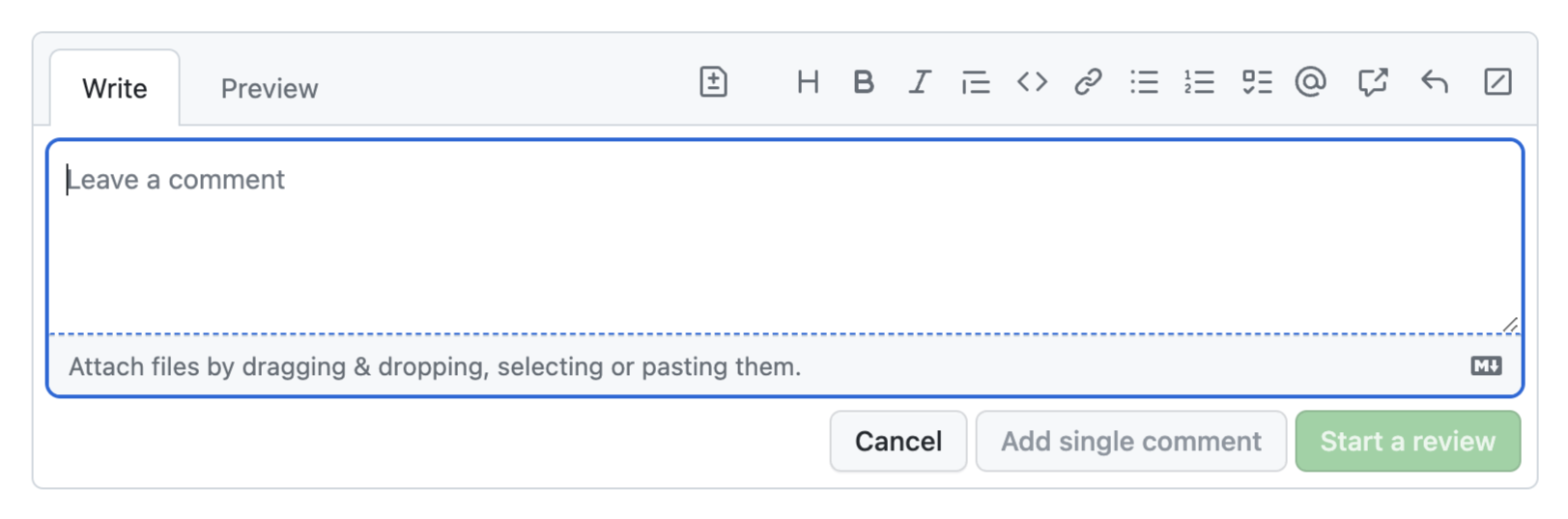
While definitely more cluttered, its main UI elements were much more recognizable: there is a text field, indicated by the rounded rectangle, and tabs, indicated by the light gray border around the active tab. By merging the two, both affordances are watered down to the point of being unrecognizable.
Yes, there was more visual clutter, not all of which serves a purpose. A skilled designer could probably eliminate the rounded rectangle around the entire area without impacting usability. But the current design goes too far, and throws the baby out with the bathwater.
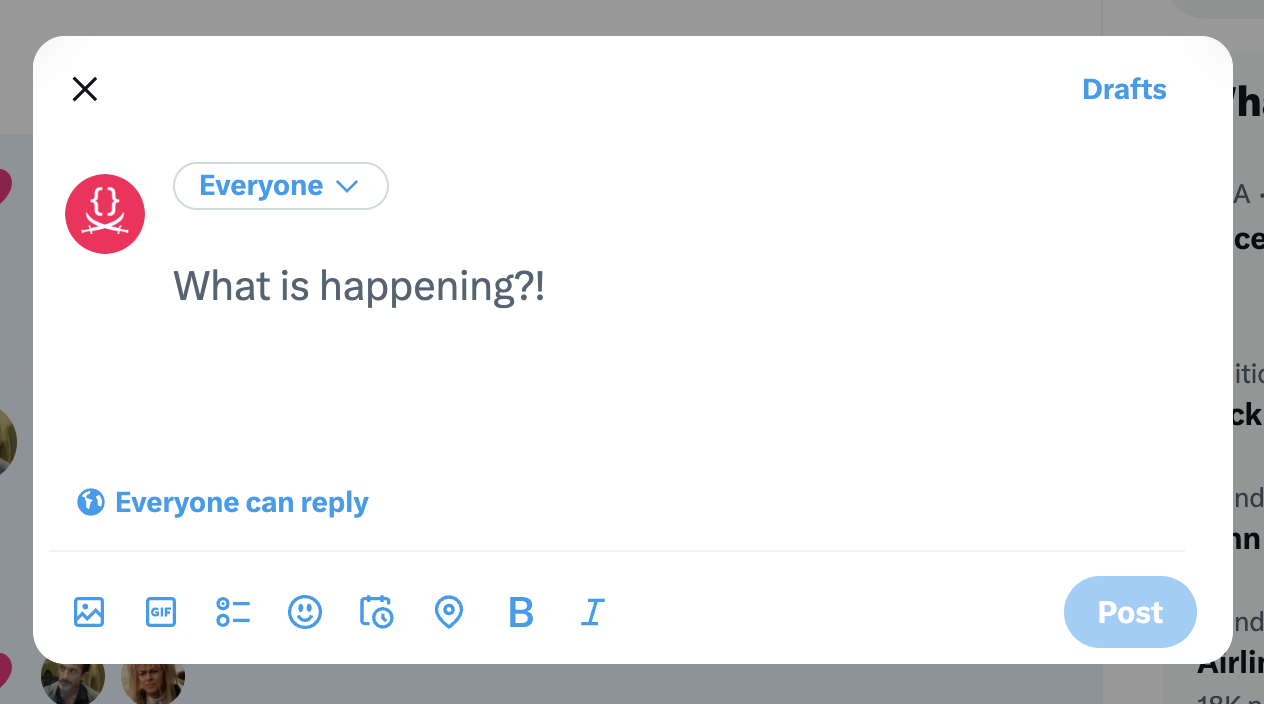
Twitter seems to be trying something similar, but since there is no irregular shape, the text field affordance is not entirely lost.
The ever-evolving vocabulary of user interaction
Communication is all about mutually understood conventions: a sufficiently widespread grammatical mistake eventually becomes part of the language. In the language of user interfaces, affordances and signifiers are the vocabulary, and the same principles apply. Learnability is not an intrinsic property of a UI; it is a function of the context (cultural and otherwise) in which it is used.
Many affordances and signifiers use metaphors from the physical world to communicate what a user can do. For example a button that looks raised reminds us of physical buttons. Tabs are a metaphor for the tabs in a binder. Others are entirely arbitrary and acquire meaning through learning, such as link underlines or the “hamburger” menu icon.
We see the same pattern in language: some words are onomatopoeic, such as “buzz” or “meow”, while others are entirely learned, such as “dog” or “cat”. Similarly, writing systems began as pictograms, but evolved to be more abstract and symbolic.
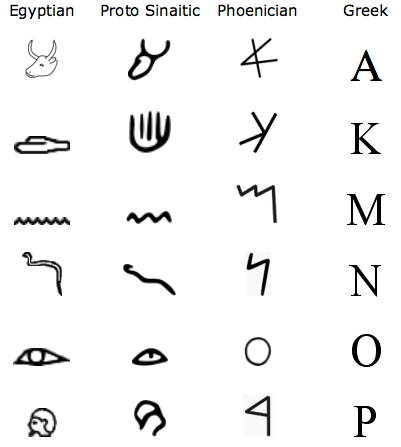
Insight and picture from https://ux.stackexchange.com/a/56896/11761
At first, the symbols are direct (if cartoony) representations. Then they slowly lose their extrinsic meaning and become defined more by our conventions of using them (our shared language) and the references to outside concepts disappear.
It’s worth reading the whole post if you have time.
UI evolution is rife with patterns that began as obscure and ended up as obvious. In other words, external consistency improved, not because the UIs changed, but because the environment did.
Some examples you are undoubtedly familiar with:
- Underlines have always been a strong affordance for links (to the point that using them for anything else is an antipattern). However, users evolved to perceive weaker signals as links, such as different colors, especially if used consistently.
- Clicking a website logo to go to the homepage was once an obscure hidden interaction, almost an easter egg. It is now so conventional that a logo that does nothing when clicked is considered a usability issue (though having separate Home links is still the recommendation, 28 years after the pattern was introduced!).
- Buttons used to need a 3D appearance to be perceived as such. We gradually evolved such that any rectangle around text is perceived as a button, even if it is entirely flat (though research shows that they are still less effective).
Could it be that the new GitHub comment UI is the beginning of a new convention? It’s possible, but the odds are slim. For new conventions to become established, they need to be widespread. Links, buttons, website logos are present on any website, so users get plenty of exposure to any evolution in their design. Similarly, multiline text fields and tabs are very commonplace UI elements. However, their combination is far less common. Even if every tabbed text field on the Web begun using the exact same design, the average user would still not get enough exposure to internalize it.
UX Stockholm Syndrome
It is entirely possible that I’m overestimating the impact of this on GitHub users. After all, I have not done user testing on it, so I’m basing my opinion on my own experience, and on what I’ve learned about usability spending the better part of the last decade at MIT teaching it and doing a PhD on it.
I wondered if it could be an A/B test, so I asked Chris to show me what UI he was seeing. He was also seeing the new UI, but interestingly he expressed frustration about being unable to tell where the text field actually is, and where he can type even before I told him about this article. Whether or not it’s not an A/B test, I’m really hoping that GitHub is collecting enough metrics so they can evaluate the impact of this design on user experience at scale.
As for me, I take comfort in knowing that when there is no alternative, users can eventually adapt to any UI, no matter how poor, so I will at some point get used to it. Airplane cockpits are the canonical example here, but this is commonly seen in UIs of a lot of enterprise software (though the wind of change is blowing straight into the face of enterprise UX).
Our life is rife with examples of poor usability, to the point where if something is easy to use, people are often surprised. There is even what some of us call “UX Stockholm Syndrome”: after very prolonged exposure to a poor interface, users start believing that it is easy to use, and even advocate against improvements. The curse of knowledge makes them forget how difficult it was to learn, and the prolonged exposure can even make them efficient at using it.
Take hex colors for example. Quick, what color is #7A6652?
Learning to mentally translate between hex color notation and actual visible colors takes years of practice.
Hex notation was never designed for humans; it was designed for machines, as a compact way to represent the 3 bytes of RGB channels of earlier screens.
Humans do not think of colors as combinations of lights.
It’s not logical that to make brown you combine some red, a bit less green, and even less blue.
That is neither how we think about color, nor does it relate to any of our real-world color mixing experiences.
There are several color models with a more human-centered design, such as HSL, LCH, OKLCH.
Their coordinates are designed around how humans describe colors,
such as hue for the main color (e.g. red, yellow, green, etc.), chroma/saturation to specify how intense the color is (e.g. 0 would be gray), and lightness to specify how light it is (e.g. white would be 100% and black would be 0%).
Yet, it’s common to see the kinds of people who have had very prolonged exposure to this notation (e.g. web designers) not only prefer it, but even try to sing its praises!
Another example, entirely outside of software, is music notation. You’ve likely learned it as a child, so it’s hard to remember what the learning experience was like, and if you regularly read music sheets, you may even believe it’s easy. But if we try to step back and examine it objectively, it’s highly unintuitive.
Expanding on this would take a whole other article, but I will just give one example. Take a look at the symbols for notes and pauses:
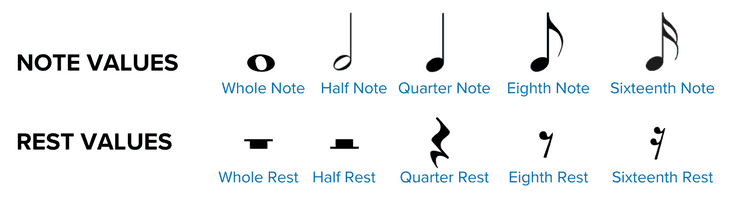
Image courtesy of Musicnotes
There is not only an ordering here, but successive symbols even have a fixed ratio of 2. Yet absolutely nothing in their representation signifies this. Nothing in the depiction of ♩ indicates that it is longer than ♪, let alone that it is double the length. You just have to learn it. Heck, there’s nothing even indicating whether a symbol produces sound or not! Demanding a lot of knowledge in the head is not a problem in itself; it’s a common tradeoff when efficiency is higher priority than learnability. E.g. the alphabet is also a set of arbitrary symbols we need to learn to be able to form words. But even the best tradeoff is worse than none, aka having your cake and eating it too beats both options. Was a tradeoff really necessary here? Was there really no possible depiction of these symbols that could communicate their purpose, order, and ratios? Or at least a notation that was memorable by association rather than straight memorization?
Update: GitHub’s response (Nov 20th, 2023)
This post resonated a lot with people on social media. Here are some selected responses:
Selected Social Media Replies
https://twitter.com/jitl/status/1720272221149581493
https://twitter.com/noeldevelops/status/1724509073964487056
https://twitter.com/zisiszikos/status/1720157900620939519
https://twitter.com/manuelmeister/status/1720147908731818249
@leaverou @github I really thought the page was broken or incompletely loaded until I saw it enough times to try typing in it. It’s emotionally uncomfortable to type in, fighting how it looks vs. what I know it is. — Benjamin @hazula@hachyderm.io, Nov 3rd, 2023
The Primer team at GitHub reached out to me to discuss the issue, and I was happy to see that they were very receptive to feedback. They then iterated, and came up with a new design that communicates purpose much better, even if less minimalistic:
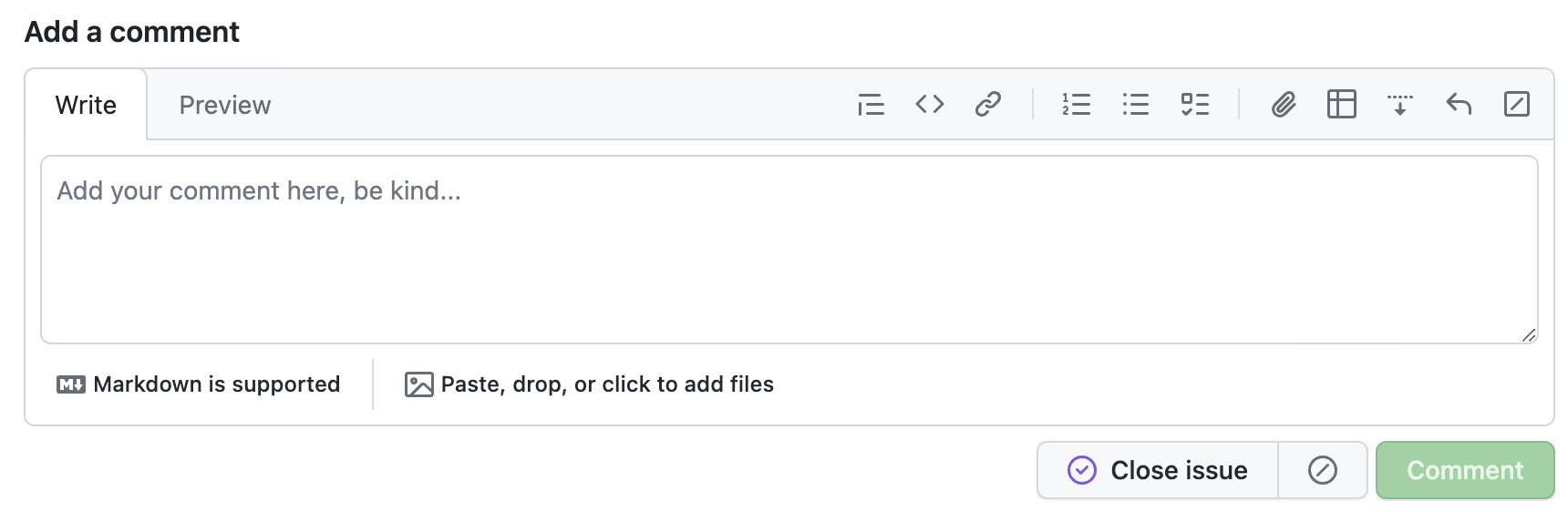
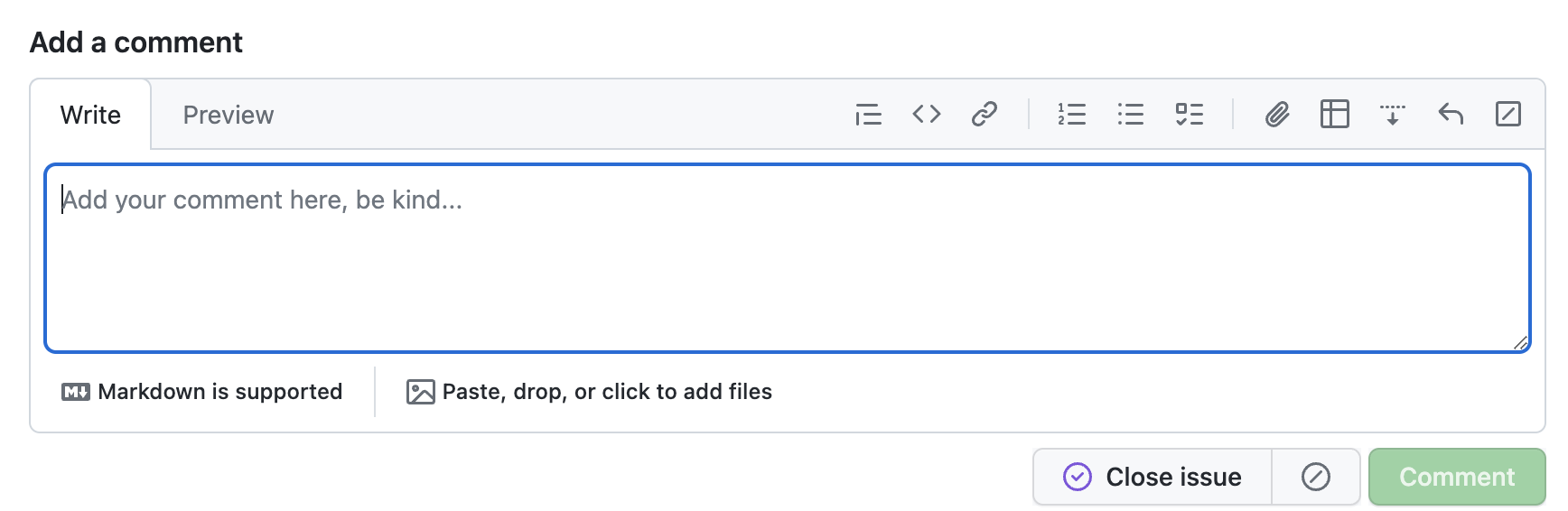
https://twitter.com/natalyathree/status/1729161513636884499
@leaverou @github thank you for this post. We have shipped improvements to make it easier again to identify the textarea and distinguish between Write and Preview. — Daniel Adams (@dipree@mastodon.social), Nov 20th, 2023
Always great to see an org that is receptive to feedback!
Answers to common (web) accessibility questions
Inspired by Chris Coyier' Answers to common (web) design questions, which was inspired by Dan Mall's earlier post, here's list of common accessibility questions.
Should I use links or buttons?
Yes.
Links if it takes the user somewhere, buttons if it performs an action. Also buttons if the action is submitting a form (even if the user is then taken somewhere). Trying to avoid nuance in this post, but here's some nuance around buttons and links.
Do we have users with disabilities?
Yes.
It's unlikely you know every single one of your users and exactly how they use the web. It's even more unlikely that the the group and the people within it stays exactly the same forever.
What's an accessibility conformance audit?
Someone will find out for every of the 55 Success Criteria in WCAG whether your site meets it or not (counting version 2.2, Level A + AA). Ideally, they also explain what the issues are and how to fix them (so that you can do it). This is also called a conformance evaluation.
Who should “do” accessibility in our team?
Everyone. Content folks, developers, designers and product managers all have accessibility tasks to do.
What are some quick tests I can do?
Use your UI with Tab / Shift Tab on a keyboard (check settings if on a Mac), can you reach everything without a mouse? Does the order make sense?
Click on labels for form fields, they should focus the field they are a label of.
Check if your videos and audio (podcasts?) have captions / transcripts.
Is accessibility ever done?
No. It's a continuous process, even if your audit says you meet all Success Criteria today, it's common to stop meeting it. Websites change. You'll want to continuously monitor accessibility, just like with security and privacy.
Do we have legal obligations to make our products accessible?
Very likely. Also if you're not government (for instance, see European Accessibility Act).
There are policies and laws all around the world.
Is it all my website's fault?
No, some problems can be solved by browsers, assistive technologies and/or authoring tools.
WCAG 3.0 will be released soon, right?
Not likely. The working group that made WCAG 2 (Accessibility Guidelines Working Group) is currently working on requirements and draft definitions for a next version that will likely be called WCAG 3.0. There is a Working Draft. It is very much in development in a very early phase, and likely to change considerably.
Will “AI” improve accessibility?
Machine learning can be a great tool for automating part of the captioning process in lots of languages, and various other things.
But it's unlikely LLMs, often called “AI”, will output accessible code. To train such an LLM, an enormous set of very accessible code would need to exist (it doesn't). Component-building and accessibility semantics also require intentionality, which these systems specifically aren't good at. See also my other post: Is the nuance generatable?, and Craig Abbott's post Deque Axe Assistant - First impressions.
Is the Axe / Page Insights score all that matters? Or the WCAG audit result?
No. Any system that scores your site and returns some number (including WCAG audits) does not fully describe your accessibility situation. Accessibility is, ultimately, about people and whether they can use your site. It's about recognising, then removing barriers. Metrics can help in various ways, but they are not the end goal. And the most easily measureable is not necessarily the most impactful.
More detailed accessibility posts can be found elsewhere on this blog.
Originally posted as Answers to common (web) accessibility questions on Hidde's blog.
How to recover a GitHub Actions secret
tclip just got clippier - YouTube Short
Confusing git terminology
Hello! I’m slowly working on explaining git. One of my biggest problems is that after almost 15 years of using git, I’ve become very used to git’s idiosyncracies and it’s easy for me to forget what’s confusing about it.
So I asked people on Mastodon:
what git jargon do you find confusing? thinking of writing a blog post that explains some of git’s weirder terminology: “detached HEAD state”, “fast-forward”, “index/staging area/staged”, “ahead of ‘origin/main’ by 1 commit”, etc
I got a lot of GREAT answers and I’ll try to summarize some of them here. Here’s a list of the terms:
- HEAD and “heads”
- “detached HEAD state”
- “ours” and “theirs” while merging or rebasing
- “Your branch is up to date with ‘origin/main’”
- HEAD^, HEAD~ HEAD^^, HEAD~~, HEAD^2, HEAD~2
- .. and …
- “can be fast-forwarded”
- “reference”, “symbolic reference”
- refspecs
- “tree-ish”
- “index”, “staged”, “cached”
- “reset”, “revert”, “restore”
- “untracked files”, “remote-tracking branch”, “track remote branch”
- checkout
- reflog
- merge vs rebase vs cherry-pick
- rebase –onto
- commit
- more confusing terms
I’ve done my best to explain what’s going on with these terms, but they cover basically every single major feature of git which is definitely too much for a single blog post so it’s pretty patchy in some places.
HEAD and “heads”
A few people said they were confused by the terms HEAD and refs/heads/main,
because it sounds like it’s some complicated technical internal thing.
Here’s a quick summary:
- “heads” are “branches”. Internally in git, branches are stored in a directory called
.git/refs/heads. (technically the official git glossary says that the branch is all the commits on it and the head is just the most recent commit, but they’re 2 different ways to think about the same thing) HEADis the current branch. It’s stored in.git/HEAD.
I think that “a head is a branch, HEAD is the current branch” is a good
candidate for the weirdest terminology choice in git, but it’s definitely too
late for a clearer naming scheme so let’s move on.
There are some important exceptions to “HEAD is the current branch”, which we’ll talk about next.
“detached HEAD state”
You’ve probably seen this message:
$ git checkout v0.1
You are in 'detached HEAD' state. You can look around, make experimental
changes and commit them, and you can discard any commits you make in this
state without impacting any branches by switching back to a branch.

[...]
Here’s the deal with this message:
- In Git, usually you have a “current branch” checked out, for example
main. - The place the current branch is stored is called
HEAD. - Any new commits you make will get added to your current branch, and if you run
git merge other_branch, that will also affect your current branch - But
HEADdoesn’t have to be a branch! Instead it can be a commit ID. - Git calls this state (where HEAD is a commit ID instead of a branch) “detached HEAD state”
- For example, you can get into detached HEAD state by checking out a tag, because a tag isn’t a branch
- if you don’t have a current branch, a bunch of things break:
git pulldoesn’t work at all (since the whole point of it is to update your current branch)- neither does
git pushunless you use it in a special way git commit,git merge,git rebase, andgit cherry-pickdo still work, but they’ll leave you with “orphaned” commits that aren’t connected to any branch, so those commits will be hard to find
- You can get out of detached HEAD state by either creating a new branch or switching to an existing branch
“ours” and “theirs” while merging or rebasing
If you have a merge conflict, you can run git checkout --ours file.txt to pick the version of file.txt from the “ours” side. But which side is “ours” and which side is “theirs”?
I always find this confusing and I never use git checkout --ours because of
that, but I looked it up to see which is which.
For merges, here’s how it works: the current branch is “ours” and the branch you’re merging in is “theirs”, like this. Seems reasonable.
$ git checkout merge-into-ours # current branch is "ours"
$ git merge from-theirs # branch we're merging in is "theirs"
For rebases it’s the opposite – the current branch is “theirs” and the target branch we’re rebasing onto is “ours”, like this:
$ git checkout theirs # current branch is "theirs"
$ git rebase ours # branch we're rebasing onto is "ours"
I think the reason for this is that under the hood git rebase main is
repeatedly merging commits from the current branch into a copy of the main branch (you can
see what I mean by that in this weird shell script the implements git rebase using git merge. But I
still find it confusing.
This nice tiny site explains the “ours” and “theirs” terms.
A couple of people also mentioned that VSCode calls “ours”/“theirs” “current change”/“incoming change”, and that it’s confusing in the exact same way.
“Your branch is up to date with ‘origin/main’”
This message seems straightforward – it’s saying that your main branch is up
to date with the origin!
But it’s actually a little misleading. You might think that this means that
your main branch is up to date. It doesn’t. What it actually means is –
if you last ran git fetch or git pull 5 days ago, then your main branch
is up to date with all the changes as of 5 days ago.
So if you don’t realize that, it can give you a false sense of security.
I think git could theoretically give you a more useful message like “is up to
date with the origin’s main as of your last fetch 5 days ago” because the time
that the most recent fetch happened is stored in the reflog, but it doesn’t.
HEAD^, HEAD~ HEAD^^, HEAD~~, HEAD^2, HEAD~2
I’ve known for a long time that HEAD^ refers to the previous commit, but I’ve
been confused for a long time about the difference between HEAD~ and HEAD^.
I looked it up, and here’s how these relate to each other:
HEAD^andHEAD~are the same thing (1 commit ago)HEAD^^^andHEAD~~~andHEAD~3are the same thing (3 commits ago)HEAD^3refers the the third parent of a commit, and is different fromHEAD~3
This seems weird – why are HEAD~ and HEAD^ the same thing? And what’s the
“third parent”? Is that the same thing as the parent’s parent’s parent? (spoiler: it
isn’t) Let’s talk about it!
Most commits have only one parent. But merge commits have multiple parents –
they’re merging together 2 or more commits. In Git HEAD^ means “the parent of
the HEAD commit”. But what if HEAD is a merge commit? What does HEAD^ refer
to?
The answer is that HEAD^ refers to the the first parent of the merge,
HEAD^2 is the second parent, HEAD^3 is the third parent, etc.
But I guess they also wanted a way to refer to “3 commits ago”, so HEAD^3 is
the third parent of the current commit (which may have many parents if it’s a merge commit), and HEAD~3 is the parent’s parent’s
parent.
I think in the context of the merge commit ours/theirs discussion earlier, HEAD^ is “ours” and HEAD^2 is “theirs”.
.. and ...
Here are two commands:
git log main..testgit log main...test
What’s the difference between .. and ...? I never use these so I had to look it up in man git-range-diff. It seems like the answer is that in this case:
A - B main
  \
    C - D test
main..testis commits C and Dtest..mainis commit Bmain...testis commits B, C, and D
But it gets worse: apparently git diff also supports .. and ..., but
they do something completely different than they do with git log? I think the summary is:
git log test..mainshows changes onmainthat aren’t ontest, whereasgit log test...mainshows changes on both sides.git diff test..mainshowstestchanges andmainchanges (it diffsBandD) whereasgit diff test...maindiffsAandD(it only shows you the diff on one side).
this blog post talks about it a bit more.
“can be fast-forwarded”
Here’s a very common message you’ll see in git status:
$ git status
On branch main
Your branch is behind 'origin/main' by 2 commits, and can be fast-forwarded.
  (use "git pull" to update your local branch)
What does “fast-forwarded” mean? Basically it’s trying to say that the two branches look something like this: (newest commits are on the right)
main:        A - B - C
origin/main: A - B - C - D - E
or visualized another way:
A - B - C - D - E (origin/main)
        |
       main
Here origin/main just has 2 extra commits that main doesn’t have, so it’s
easy to bring main up to date – we just need to add those 2 commits.
Literally nothing can possibly go wrong – there’s no possibility of merge
conflicts. A fast forward merge is a very good thing! It’s the easiest way to combine 2 branches.
After running git pull, you’ll end up this state:
main:        A - B - C - D - E
origin/main: A - B - C - D - E
Here’s an example of a state which can’t be fast-forwarded.
             A - B - C - X  (main)
                     |
                     - - D - E  (origin/main)
Here main has a commit that origin/main doesn’t have (X). So
you can’t do a fast forward. In that case, git status would say:
$ git status
Your branch and 'origin/main' have diverged,
and have 1 and 2 different commits each, respectively.
“reference”, “symbolic reference”
I’ve always found the term “reference” kind of confusing. There are at least 3 things that get called “references” in git
- branches and tags like
mainandv0.2 HEAD, which is the current branch- things like
HEAD^^^which git will resolve to a commit ID. Technically these are probably not “references”, I guess git calls them “revision parameters” but I’ve never used that term.
“symbolic reference” is a very weird term to me because personally I think the only
symbolic reference I’ve ever used is HEAD (the current branch), and HEAD
has a very central place in git (most of git’s core commands’ behaviour depends
on the value of HEAD), so I’m not sure what the point of having it as a
generic concept is.
refspecs
When you configure a git remote in .git/config, there’s this +refs/heads/main:refs/remotes/origin/main thing.
[remote "origin"]
	url = git@github.com:jvns/pandas-cookbook
	fetch = +refs/heads/main:refs/remotes/origin/main
I don’t really know what this means, I’ve always just used whatever the default
is when you do a git clone or git remote add, and I’ve never felt any
motivation to learn about it or change it from the default.
“tree-ish”
The man page for git checkout says:
git checkout [-f|--ours|--theirs|-m|--conflict=<style>] [<tree-ish>] [--] <pathspec>...
What’s tree-ish??? What git is trying to say here is when you run git checkout THING ., THING can be either:
- a commit ID (like
182cd3f) - a reference to a commit ID (like
mainorHEAD^^orv0.3.2) - a subdirectory inside a commit (like
main:./docs) - I think that’s it????
Personally I’ve never used the “directory inside a commit” thing and from my perspective “tree-ish” might as well just mean “commit or reference to commit”.
“index”, “staged”, “cached”
All of these refer to the exact same thing (the file .git/index, which is where your changes are staged when you run git add):
git diff --cachedgit rm --cachedgit diff --staged- the file
.git/index
Even though they all ultimately refer to the same file, there’s some variation in how those terms are used in practice:
- Apparently the flags
--indexand--cacheddo not generally mean the same thing. I have personally never used the--indexflag so I’m not going to get into it, but this blog post by Junio Hamano (git’s lead maintainer) explains all the gnarly details - the “index” lists untracked files (I guess for performance reasons) but you don’t usually think of the “staging area” as including untracked files”
“reset”, “revert”, “restore”
A bunch of people mentioned that “reset”, “revert” and “restore” are very similar words and it’s hard to differentiate them.
I think it’s made worse because
git reset --hardandgit restore .on their own do basically the same thing. (thoughgit reset --hard COMMITandgit restore --source COMMIT .are completely different from each other)- the respective man pages don’t give very helpful descriptions:
git reset: “Reset current HEAD to the specified state”git revert: “Revert some existing commits”git restore: “Restore working tree files”
Those short descriptions do give you a better sense for which noun is being affected (“current HEAD”, “some commits”, “working tree files”) but they assume you know what “reset”, “revert” and “restore” mean in this context.
Here are some short descriptions of what they each do:
git revert COMMIT: Create a new commit that’s the “opposite” of COMMIT on your current branch (if COMMIT added 3 lines, the new commit will delete those 3 lines)git reset --hard COMMIT: Force your current branch back to the state it was atCOMMIT, erasing any new changes sinceCOMMIT. Very dangerous operation.git restore --source=COMMIT PATH: Take all the files inPATHback to how they were atCOMMIT, without changing any other files or commit history.
“untracked files”, “remote-tracking branch”, “track remote branch”
Git uses the word “track” in 3 different related ways:
Untracked files:in the output ofgit status. This means those files aren’t managed by Git and won’t be included in commits.- a “remote tracking branch” like
origin/main. This is a local reference, and it’s the commit ID thatmainpointed to on the remoteoriginthe last time you rangit pullorgit fetch. - “branch foo set up to track remote branch bar from origin”
The “untracked files” and “remote tracking branch” thing is not too bad – they both use “track”, but the context is very different. No big deal. But I think the other two uses of “track” are actually quite confusing:
mainis a branch that tracks a remoteorigin/mainis a remote-tracking branch
But a “branch that tracks a remote” and a “remote-tracking branch” are different things in Git and the distinction is pretty important! Here’s a quick summary of the differences:
mainis a branch. You can make commits to it, merge into it, etc. It’s often configured to “track” the remotemainin.git/config, which means that you can usegit pullandgit pushto push/pull changes.origin/mainis not a branch. It’s a “remote-tracking branch”, which is not a kind of branch (I’m sorry). You can’t make commits to it. The only way you can update it is by runninggit pullorgit fetchto get the latest state ofmainfrom the remote.
I’d never really thought about this ambiguity before but I think it’s pretty easy to see why folks are confused by it.
checkout
Checkout does two totally unrelated things:
git checkout BRANCHswitches branchesgit checkout file.txtdiscards your unstaged changes tofile.txt
This is well known to be confusing and git has actually split those two
functions into git switch and git restore (though you can still use
checkout if, like me, you have 15 years of muscle memory around git checkout
that you don’t feel like unlearning)
Also personally after 15 years I still can’t remember the order of the
arguments to git checkout main file.txt for restoring the version of
file.txt from the main branch.
I think sometimes you need to pass -- to checkout as an argument somewhere
to help it figure out which argument is a branch and which ones are paths but I
never do that and I’m not sure when it’s needed.
reflog
Lots of people mentioning reading reflog as re-flog and not ref-log. I
won’t get deep into the reflog here because this post is REALLY long but:
- “reference” is an umbrella term git uses for branches, tags, and HEAD
- the reference log (“reflog”) gives you the history of everything a reference has ever pointed to
- It can help get you out of some VERY bad git situations, like if you accidentally delete an important branch
- I find it one of the most confusing parts of git’s UI and I try to avoid needing to use it.
merge vs rebase vs cherry-pick
A bunch of people mentioned being confused about the difference between merge and rebase and not understanding what the “base” in rebase was supposed to be.
I’ll try to summarize them very briefly here, but I don’t think these 1-line explanations are that useful because people structure their workflows around merge / rebase in pretty different ways and to really understand merge/rebase you need to understand the workflows. Also pictures really help. That could really be its whole own blog post though so I’m not going to get into it.
- merge creates a single new commit that merges the 2 branches
- rebase copies commits on the current branch to the target branch, one at a time.
- cherry-pick is similar to rebase, but with a totally different syntax (one big difference is that rebase copies commits FROM the current branch, cherry-pick copies commits TO the current branch)
rebase --onto
git rebase has an flag called onto. This has always seemed confusing to me
because the whole point of git rebase main is to rebase the current branch
onto main. So what’s the extra onto argument about?
I looked it up, and --onto definitely solves a problem that I’ve rarely/never
actually had, but I guess I’ll write down my understanding of it anyway.
A - B - C (main)
     \
      D - E - F - G (mybranch)
          |
          otherbranch
Imagine that for some reason I just want to move commits F and G to be
rebased on top of main. I think there’s probably some git workflow where this
comes up a lot.
Apparently you can run git rebase --onto main otherbranch mybranch to do
that. It seems impossible to me to remember the syntax for this (there are 3
different branch names involved, which for me is too many), but I heard about it from a
bunch of people so I guess it must be useful.
commit
Someone mentioned that they found it confusing that commit is used both as a verb and a noun in git.
for example:
- verb: “Remember to commit often”
- noun: “the most recent commit on
main“
My guess is that most folks get used to this relatively quickly, but this use of “commit” is different from how it’s used in SQL databases, where I think “commit” is just a verb (you “COMMIT” to end a transaction) and not a noun.
Also in git you can think of a Git commit in 3 different ways:
- a snapshot of the current state of every file
- a diff from the parent commit
- a history of every previous commit
None of those are wrong: different commands use commits in all of these ways.
For example git show treats a commit as a diff, git log treats it as a
history, and git restore treats it as a snapshot.
But git’s terminology doesn’t do much to help you understand in which sense a commit is being used by a given command.
more confusing terms
Here are a bunch more confusing terms. I don’t know what a lot of these mean.
things I don’t really understand myself:
- “the git pickaxe” (maybe this is
git log -Sandgit log -G, for searching the diffs of previous commits?) - submodules (all I know is that they don’t work the way I want them to work)
- “cone mode” in git sparse checkout (no idea what this is but someone mentioned it)
things that people mentioned finding confusing but that I left out of this post because it was already 3000 words:
- blob, tree
- the direction of “merge”
- “origin”, “upstream”, “downstream”
- that
pushandpullaren’t opposites - the relationship between
fetchandpull(pull = fetch + merge) - git porcelain
- subtrees
- worktrees
- the stash
- “master” or “main” (it sounds like it has a special meaning inside git but it doesn’t)
- when you need to use
origin main(likegit push origin main) vsorigin/main
github terms people mentioned being confused by:
- “pull request” (vs “merge request” in gitlab which folks seemed to think was clearer)
- what “squash and merge” and “rebase and merge” do (I’d never actually heard of
git merge --squashuntil yesterday, I thought “squash and merge” was a special github feature)
it’s genuinely “every git term”
I was surprised that basically every other core feature of git was mentioned by at least one person as being confusing in some way. I’d be interested in hearing more examples of confusing git terms that I missed too.
There’s another great post about this from 2012 called the most confusing git terminology. It talks more about how git’s terminology relates to CVS and Subversion’s terminology.
If I had to pick the 3 most confusing git terms, I think right now I’d pick:
- a
headis a branch,HEADis the current branch - “remote tracking branch” and “branch that tracks a remote” being different things
- how “index”, “staged”, “cached” all refer to the same thing
that’s all!
I learned a lot from writing this – I learned a few new facts about git, but more importantly I feel like I have a slightly better sense now for what someone might mean when they say that everything in git is confusing.
I really hadn’t thought about a lot of these issues before – like I’d never realized how “tracking” is used in such a weird way when discussing branches.
Also as usual I might have made some mistakes, especially since I ended up in a bunch of corners of git that I hadn’t visited before.
Also a very quick plug: I’m working on writing a zine about git, if you’re interested in getting an email when it comes out you can sign up to my very infrequent announcements mailing list.