Reading List
The most recent articles from a list of feeds I subscribe to.
Sherlock — 2023 day 15
Starting a new Laravel 9 project
Examples of floating point problems
Hello! I’ve been thinking about writing a zine about how things are represented on computers in bytes, so I was thinking about floating point.
I’ve heard a million times about the dangers of floating point arithmetic, like:
- addition isn’t associative (
x + (y + z)is different from(x + y) + z) - if you add very big values to very small values, you can get inaccurate results (the small numbers get lost!)
- you can’t represent very large integers as floating numbers
- NaN/infinity values can propagate and cause chaos
- there are two zeros (+0 and -0), and they’re not represented the same way
- denormal/subnormal values are weird
But I find all of this a little abstract on its own, and I really wanted some specific examples of floating point bugs in real-world programs.
So I asked on Mastodon for examples of how floating point has gone wrong for them in real programs, and as always folks delivered! Here are a bunch of examples. I’ve also written some example programs for some of them to see exactly what happens. Here’s a table of contents:
how does floating point work?
floating point isn’t “bad” or random
example 1: the odometer that stopped
example 2: tweet IDs in Javascript
example 3: a variance calculation gone wrong
example 4: different languages sometimes do the same floating point calculation differently
example 5: the deep space kraken
example 6: the inaccurate timestamp
example 7: splitting a page into columns
example 8: collision checking
None of these 8 examples talk about NaNs or +0/-0 or infinity values or subnormals, but it’s not because those things don’t cause problems – it’s just that I got tired of writing at some point :).
Also I’ve probably made some mistakes in this post.
how does floating point work?
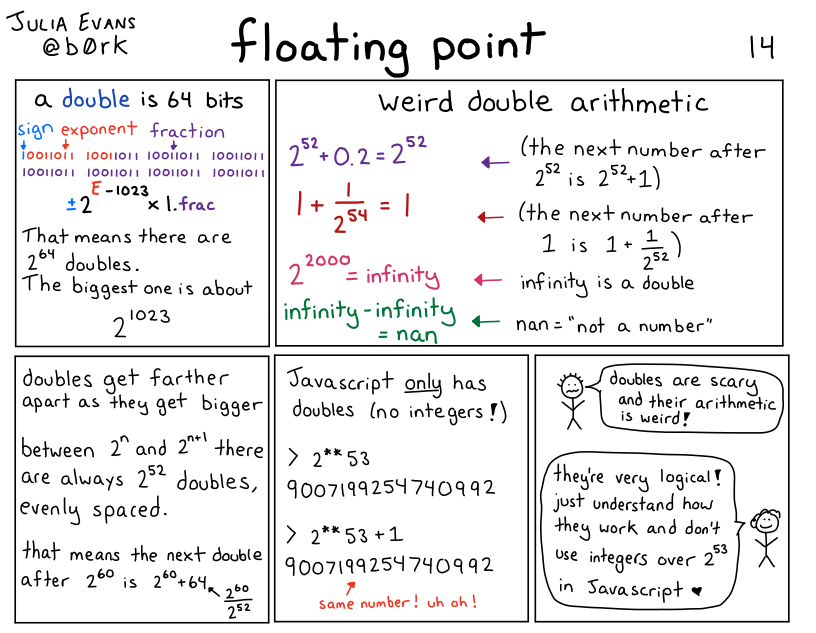
I’m not going to write a long explanation of how floating point works in this post, but here’s a comic I wrote a few years ago that talks about the basics:
floating point isn’t “bad” or random
I don’t want you to read this post and conclude that floating point is bad. It’s an amazing tool for doing numerical calculations. So many smart people have done so much work to make numerical calculations on computers efficient and accurate! Two points about how all of this isn’t floating point’s fault:
- Doing numerical computations on a computer inherently involves some approximation and rounding, especially if you want to do it efficiently. You can’t always store an arbitrary amount of precision for every single number you’re working with.
- Floating point is standardized (IEEE 754), so operations like addition on floating point numbers are deterministic – my understanding is that 0.1 + 0.2 will always give you the exact same result (0.30000000000000004), even across different architectures. It might not be the result you expected, but it’s actually very predictable.
My goal for this post is just to explain what kind of problems can come up with floating point numbers and why they happen so that you know when to be careful with them, and when they’re not appropriate.
Now let’s get into the examples.
example 1: the odometer that stopped
One person said that they were working on an odometer that was continuously adding small amounts to a 32-bit float to measure distance travelled, and things went very wrong.
To make this concrete, let’s say that we’re adding numbers to the odometer 1cm at a time. What does it look like after 10,000 kilometers?
Here’s a C program that simulates that:
#include <stdio.h>
int main() {
    float meters = 0;
    int iterations = 100000000;
    for (int i = 0; i < iterations; i++) {
        meters += 0.01;
    }
    printf("Expected: %f km\n", 0.01 * iterations / 1000 );
    printf("Got: %f km \n", meters / 1000);
}
and here’s the output:
Expected: 10000.000000 km
Got: 262.144012 km
This is VERY bad – it’s not a small error, 262km is a LOT less than 10,000km. What went wrong?
what went wrong: gaps between floating point numbers get big
The problem in this case is that, for 32-bit floats, 262144.0 + 0.01 = 262144.0. So it’s not just that the number is inaccurate, it’ll actually never increase at all! If we travelled another 10,000 kilometers, the odometer would still be stuck at 262144 meters (aka 262.144km).
Why is this happening? Well, floating point numbers get farther apart as they get bigger. In this example, for 32-bit floats, here are 3 consecutive floating point numbers:
- 262144.0
- 262144.03125
- 262144.0625
I got those numbers by going to https://float.exposed/0x48800000 and incrementing the ‘significand’ number a couple of times.
So, there are no 32-bit floating point numbers between 262144.0 and 262144.03125. Why is that a problem?
The problem is that 262144.03125 is about 262144.0 + 0.03. So when we try to add 0.01 to 262144.0, it doesn’t make sense to round up to the next number. So the sum just stays at 262144.0.
Also, it’s not a coincidence that 262144 is a power of 2 (it’s 2^18). The gaps been floating point numbers change after every power of 2, and at 2^18 the gap between 32-bit floats is 0.03125, increasing from 0.016ish.
one way to solve this: use a double
Using a 64-bit float fixes this – if we replace float with double in the above C program, everything works a lot better. Here’s the output:
Expected: 10000.000000 km
Got: 9999.999825 km
There are still some small inaccuracies here – we’re off about 17 centimeters. Whether this matters or not depends on the context: being slightly off could very well be disastrous if we were doing a precision space maneuver or something, but it’s probably fine for an odometer.
Another way to improve this would be to increment the odometer in bigger chunks – instead of adding 1cm at a time, maybe we could update it less frequently, like every 50cm.
If we use a double and increment by 50cm instead of 1cm, we get the exact correct answer:
Expected: 10000.000000 km
Got: 10000.000000 km
A third way to solve this could be to use an integer: maybe we decide that the smallest unit we care about is 0.1mm, and then measure everything as integer multiples of 0.1mm. I have never built an odometer so I can’t say what the best approach is.
example 2: tweet IDs in Javascript
Javascript only has floating point numbers – it doesn’t have an integer type. The biggest integer you can represent in a 64-bit floating point number is 2^53.
But tweet IDs are big numbers, bigger than 2^53. The Twitter API now returns them as both integers and strings, so that in Javascript you can just use the string ID (like “1612850010110005250”), but if you tried to use the integer version in JS, things would go very wrong.
You can check this yourself by taking a tweet ID and putting it in the Javascript console, like this:
>> 1612850010110005250
   1612850010110005200
Notice that 1612850010110005200 is NOT the same number as 1612850010110005250!! It’s 50 less!
This particular issue doesn’t happen in Python (or any other language that I know of), because Python has integers. Here’s what happens if we enter the same number in a Python REPL:
In [3]: 1612850010110005250
Out[3]: 1612850010110005250
Same number, as you’d expect.
example 2.1: the corrupted JSON data
This is a small variant of the “tweet IDs in Javascript” issue, but even if you’re not actually writing Javascript code, numbers in JSON are still sometimes treated as if they’re floats. This mostly makes sense to me because JSON has “Javascript” in the name, so it seems reasonable to decode the values the way Javascript would.
For example, if we pass some JSON through jq, we see the exact same issue:
the number 1612850010110005250 gets changed into 1612850010110005200.
$ echo '{"id": 1612850010110005250}' | jq '.'
{
  "id": 1612850010110005200
}
But it’s not consistent across all JSON libraries Python’s json module will decode 1612850010110005250 as the correct integer.
Several people mentioned issues with sending floats in JSON, whether either they were trying to send a large integer (like a pointer address) in JSON and it got corrupted, or sending smaller floating point values back and forth repeatedly and the value slowly diverging over time.
example 3: a variance calculation gone wrong
Let’s say you’re doing some statistics, and you want to calculate the variance of many numbers. Maybe more numbers than you can easily fit in memory, so you want to do it in a single pass.
There’s a simple (but bad!!!) algorithm you can use to calculate the variance in a single pass, from this blog post. Here’s some Python code:
def calculate_bad_variance(nums):
    sum_of_squares = 0
    sum_of_nums = 0
    N = len(nums)
    for num in nums:
        sum_of_squares += num**2
        sum_of_nums += num
    mean = sum_of_nums / N
    variance = (sum_of_squares - N * mean**2) / N

    print(f"Real variance: {np.var(nums)}")
    print(f"Bad variance: {variance}")
First, let’s use this bad algorithm to calculate the variance of 5 small numbers. Everything looks pretty good:
In [2]: calculate_bad_variance([2, 7, 3, 12, 9])
Real variance: 13.84
Bad variance: 13.840000000000003 <- pretty close!
Now, let’s try it the same 100,000 large numbers that are very close together (distributed between 100000000 and 100000000.06)
In [7]: calculate_bad_variance(np.random.uniform(100000000, 100000000.06, 100000))
Real variance: 0.00029959105209321173
Bad variance: -138.93632 <- OH NO
This is extremely bad: not only is the bad variance way off, it’s NEGATIVE! (the variance is never supposed to be negative, it’s always zero or more)
what went wrong: catastrophic cancellation
What’s going here is similar to our odometer number problem: the
sum_of_squares number gets extremely big (about 10^21 or 2^69), and at that point, the
gap between consecutive floating point numbers is also very big – it’s 2**46.
So we just lose all precision in our calculations.
The term for this problem is “catastrophic cancellation” – we’re subtracting two very large floating point numbers which are both going to be pretty far from the correct value of the calculation, so the result of the subtraction is also going to be wrong.
The blog post I mentioned before talks about a better algorithm people use to compute variance called Welford’s algorithm, which doesn’t have the catastrophic cancellation issue.
And of course, the solution for most people is to just use a scientific computing library like Numpy to calculate variance instead of trying to do it yourself :)
example 4: different languages sometimes do the same floating point calculation differently
A bunch of people mentioned that different platforms will do the same calculation in different ways. One way this shows up in practice is – maybe you have some frontend code and some backend code that do the exact same floating point calculation. But it’s done slightly differently in Javascript and in PHP, so you users end up seeing discrepancies and getting confused.
In principle you might think that different implementations should work the same way because of the IEEE 754 standard for floating point, but here are a couple of caveats that were mentioned:
- math operations in libc (like sin/log) behave differently in different implementations. So code using glibc could give you different results than code using musl
- some x86 instructions can use 80 bit precision for some double operations internally instead of 64 bit precision. Here’s a GitHub issue talking about that
I’m not very sure about these points and I don’t have concrete examples I can reproduce.
example 5: the deep space kraken
Kerbal Space Program is a space simulation game, and it used to have a bug called the Deep Space Kraken where when you moved very fast, your ship would start getting destroyed due to floating point issues. This is similar to the other problems we’ve talked out involving big floating numbers (like the variance problem), but I wanted to mention it because:
- it has a funny name
- it seems like a very common bug in video games / astrophysics / simulations in general – if you have points that are very far from the origin, your math gets messed up
Another example of this is the Far Lands in Minecraft.
example 6: the inaccurate timestamp
I promise this is the last example of “very large floating numbers can ruin your day”. But! Just one more! Let’s imagine that we try to represent the current Unix epoch in nanoseconds (about 1673580409000000000) as a 64-bit floating point number.
This is no good! 1673580409000000000 is about 2^60 (crucially, bigger than 2^53), and the next 64-bit float after it is 1673580409000000256.
So this would be a great way to end up with inaccuracies in your time math. Of course, time libraries actually represent times as integers, so this isn’t usually a problem. (there’s always still the year 2038 problem, but that’s not related to floats)
In general, the lesson here is that sometimes it’s better to use integers.
example 7: splitting a page into columns
Now that we’ve talked about problems with big floating point numbers, let’s do a problem with small floating point numbers.
Let’s say you have a page width, and a column width, and you want to figure out:
- how many columns fit on the page
- how much space is left over
You might reasonably try floor(page_width / column_width) for the first
question and page_width % column_width for the second question. Because
that would work just fine with integers!
In [5]: math.floor(13.716 / 4.572)
Out[5]: 3

In [6]: 13.716 % 4.572
Out[6]: 4.571999999999999
This is wrong! The amount of space left is 0!
A better way to calculate the amount of space left might have been
13.716 - 3 * 4.572, which gives us a very small negative number.
I think the lesson here is to never calculate the same thing in 2 different ways with floats.
This is a very basic example but I can kind of see how this would create all kinds of problems if I was doing page layout with floating point numbers, or doing CAD drawings.
example 8: collision checking
Here’s a very silly Python program, that starts a variable at 1000 and
decrements it until it collides with 0. You can imagine that this is part of a
pong game or something, and that a is a ball that’s supposed to collide with
a wall.
a = 1000
while a != 0:
    a -= 0.001
You might expect this program to terminate. But it doesn’t! a is never 0,
instead it goes from 1.673494676862619e-08 to -0.0009999832650532314.
The lesson here is that instead of checking for float equality, usually you
want to check if two numbers are different by some very small amount. Or here
we could just write while a > 0.
that’s all for now
I didn’t even get to NaNs (the are so many of them!) or infinity or +0 / -0 or subnormals, but we’ve already written 2000 words and I’m going to just publish this.
I might write another followup post later – that Mastodon thread has literally 15,000 words of floating point problems in it, there’s a lot of material! Or I might not, who knows :)
Data-informed flex-grow for illustration purposes
I have this web page to display the books I've read. Book covers often bring back memories and it's been great to scroll past them on my own page. It's also an opportunity to play around with book data. This week, I added a bit of page count-based visualisation for fun.
This is what it looks like: rectangles with colours based on book covers. Each relates to a specific book, and its size is based on that book's page count.

What's flex-grow?
Flex grow is part of the CSS's flex layout mode. When you add display: flex to a HTML element, it becomes a flex container, and with that, its direct children become flex items. Flex items behave differently from block or inline level children. The difference is that flex items can be layed out in a specific direction (horizontal or vertical) and sized flexibly. This system is called “flexible layout box model” or simply flexbox. It comes with sensible defaults as well as full control via a range of properties.
One of those properties is flex-grow. This is what it does:
[flex-grow] specifies the flex grow factor, which determines how much the flex item will grow relative to the rest of the flex items in the flex container when positive free space is distributed
(from: CSS Flexible Box Layout Module Level 1)
So let's say you have ten spans in div, where the div is a flex container and the spans flex items:

If you want one to proportionally take up double the space and another to take up triple the space, you'll give them a flex-grow value of 2 or 3, respectively:
/* item 2 */
span:nth-child(2) {
  flex-grow: 2; /* takes up double */
  background: crimson;
}

/* item 6 */
span:nth-child(6) {
  flex-grow: 3; /* takes up triple */
  background: cornflowerblue;
}
The others will then each take up one part of the remaining space (as if set to 1):

The specification recommends generally using flex instead of flex-grow. This shorthand can take three numbers: a flex-grow factor (how much should it be able to grow), flex-shrink factor (how much should it be able to shrink) and a flex-basis factor (what size should we start with before applying grow or shrink factors.
We can also give flex just one positive number, to use that number as flex-grow, and a default of “1” as flex-shrink and “0” as the basis (meaning no initial space is assigned, all of the size is a result from the grow or shrink factor). In our case, we'll use that flex shorthand, it's a sensible default.
Flex-grow for widths, aspect ratio for heights
My sites displays, like, 50 books for a given year. Each with a different amount of pages. Some are just over 100 pages, others are over 500. I wanted to use that number as the flex-grow factor. This means some books claim space of 113, others claim 514:
[a-113-page-book] {
  flex: 113;
}

[a-514-page-book] {
	flex: 514;
}
So that will claim 113 worth of space for the one book and 514 worth of space for the other. I used little magic for this, I just applied an inline style attribute to each book in my template (Nunjucks), setting flex dynamically. When they all have a number, they all take a proportion, and when all the numbers are similar amounts, you'll see that the size they take up is quite similar, except for a few outliers.

As mentioned above, these numbers represent a proportion of the total available space. You might wonder: which space? Flexbox can work in horizontal and vertical direction. Or, really, in inline and block direction, where inline is the direction in which inline elements appear (like em, strong) and block the direction in which block-level elements appear (eg paragraphs and headings).
Flexbox only takes space in one direction. For my illustration, I used the default, which is the inline direction or flex-flow: row (this is shorthand for a flex-direction: row and flex-wrap: nowrap). This means my flex-grow values are about a proportion of “inline” space, in my site's case, this means horizontal space.
I also want each book to take up some vertical space, as with only a width, we would not actually see anything. I could set a fixed height (in fact, I did that for the screenshot above). But in this case, I want the height to have a fixed relationship to the width. The aspect-ratio property in CSS is made for that: if an item has a size in one dimension, the browser figures out what the other dimension's size needs to be to meet a ratio you provide. In this case, the browser finds a height based on the width that it calculated for our proportion.
Ok, so let's add an aspect ratio:
.book {
  /* flex: [set for this book as inline style] */
  aspect-ratio: 1 / 4;
}
I also added a background-color that I have available in my template (it's a piece of image metadata that I get for free from Sanity).
Oh, but wait… they still have the same height! That's because by default, items are aligned to ”stretch”, they take up all available space in the opposite direction (block if items flow in inline direction, inline if items flow in block direction). When items stretch, remaining space is assigned back to them. In this case, that means they'll get the same height. Often super useful and quite hard to do pre-flexbox. But in this case, we don't want that, so we'll use align-items to set our items to align at the “end” (also can be set to “start”, “center” and “baseline”):
 What the books looks like for different values of align-items
In my case, I also added a max-width to avoid extreme outliers and I addded opposite rotate transforms to even and odd items for funs:
.book {
  transform: rotate(-2deg);
}
.book:nth-child(odd) {
  transform: rotate(2deg);
}
This works with grids too
When I shared this, Vasilis rightly noted you could pull the same trick with grids. If you add display: grid to an element it becomes a grid container and its children grid items. That sounds a lot like flexbox, but the main difference is that sizing isn't done from the items, it is done from the container. For a grid, you define columns (and/or rows) that have a size. The fr is one of the units you can use for this, it's short for “fraction”. Pretty much like proportions in flexbox, fr will let you set column/row size that is a proportion of the available space. If you set all your columns with fr, each one will be a proportion of all available space in the relevant direction.
Summing up
I usually use flexbox with much lower numbers, often under 10. But it turns out, it works fine with larger numbers, too. I have not done extensive performance testing with this though, there may be issues if used for larger sites with more complex data.
Originally posted as Data-informed flex-grow for illustration purposes on Hidde's blog.